For many students, the stress doesn’t come from the test—it comes from the browser.
If you’ve ever opened an Eduphoria assessment and suddenly found your screen locked, tabs disabled, and shortcuts blocked, you’ve encountered the Eduphoria LockDown Browser. For students, it can feel abrupt or confusing. For schools, it’s a necessary tool to protect the integrity of online testing.
Search behavior shows something important: most people searching for “eduphoria lockdown browser” are not trying to bypass anything. They want to know what the browser does, whether they need to install it, and why it behaves differently on Chromebooks, iPads, or school-managed laptops.
This guide closes the gap between technical documentation and real-world questions. Instead of IT-only language or locked PDFs, you’ll get a clear, student-safe explanation of how Eduphoria LockDown Browser works in 2025, what it can and cannot monitor, how to access assessments correctly, and how to fix the most common issues—without myths, fear tactics, or unsafe advice.
What Is Eduphoria LockDown Browser?
Eduphoria LockDown Browser is a secure testing browser used within the Eduphoria assessment platform. When enabled by a teacher, it temporarily restricts a device so students can only access the test.
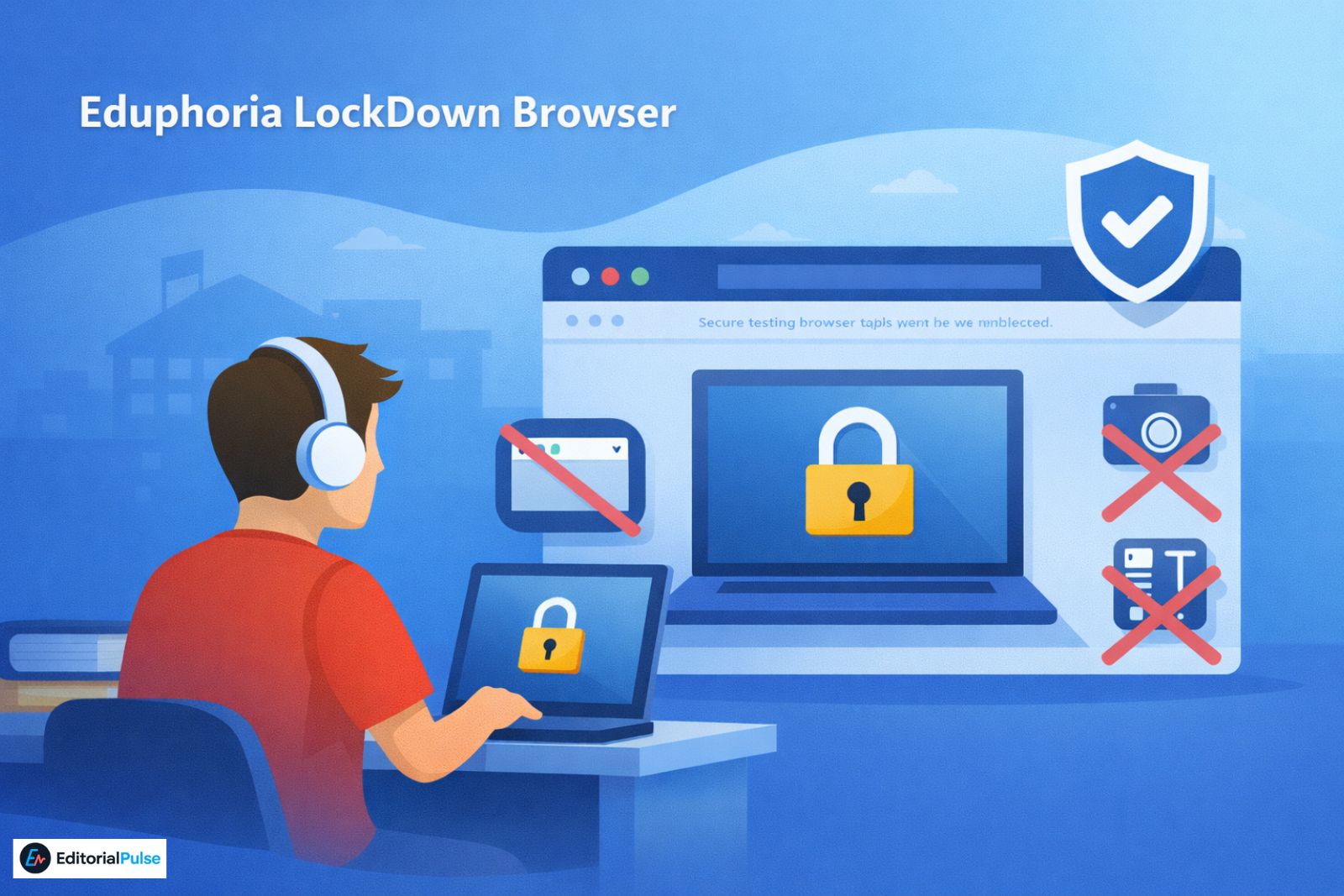
During an active assessment, the browser:
-
Locks the screen into the assessment
-
Prevents opening other applications or tabs
-
Disables screenshots, printing, and copy-paste
-
Blocks keyboard shortcuts such as Alt+Tab or Cmd+Shift+4
This creates a controlled online testing environment where students are locked into an assessment until it is submitted or exited under allowed conditions.
Eduphoria partners with Respondus to provide LockDown Browser technology. As a result, students may see “Respondus” in installation prompts, error messages, or update screens. This does not mean the wrong software is installed; it is the expected behavior even though the assessment itself runs through Eduphoria.
According to Eduphoria’s official LockDown Browser documentation, the browser is designed to restrict access to other applications during testing to protect assessment integrity.
When Do Schools Use Eduphoria LockDown Browser?
LockDown Browser is not always required.
Teachers enable it as a setting on individual assessments, most commonly for:
-
District benchmark exams
-
Secure grading assessments
-
State-aligned practice tests
-
High-stakes evaluations
If the setting is not enabled, students can complete the assessment in a standard browser.
Many support issues happen when students try to install or launch LockDown Browser without confirming that the assessment actually requires it.
Teacher & Admin Note
LockDown Browser is enabled per assessment, not globally. A student may take one Eduphoria Aware assessment in a normal browser and another in LockDown Browser—depending entirely on how the test was published.Administrators can also allowlist specific resources (such as approved calculator websites or reference PDFs) so they do not trigger a blocked screen during testing.
Also Check: Anti Detect Mobile Browser (2025): Android vs iOS, Real Solutions Explained
How Eduphoria LockDown Browser Works (Student Experience)
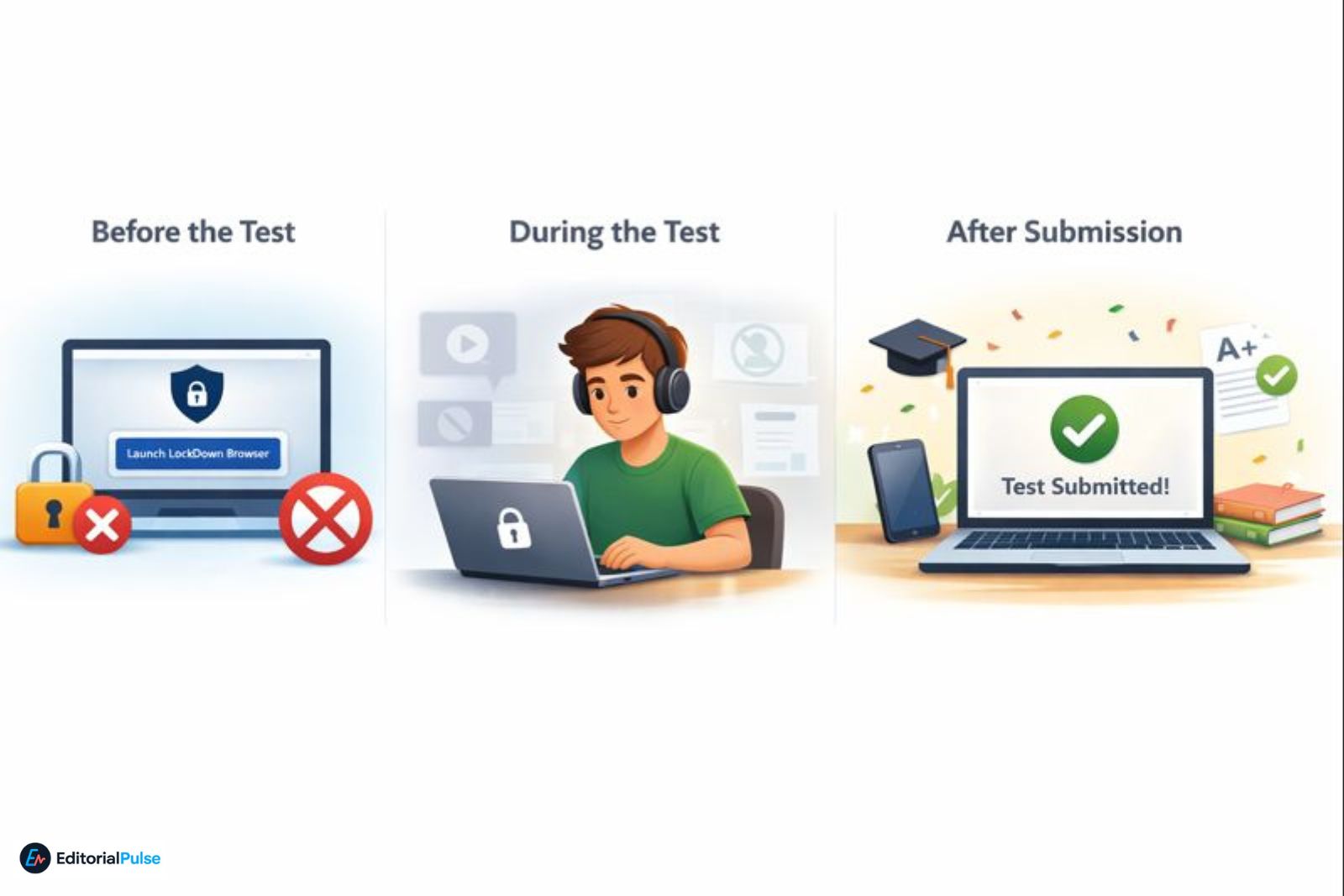
Before the Test
Students access the assessment through a school-provided URL, LMS, or Eduphoria dashboard. If LockDown Browser is required:
-
Regular browsers are blocked
-
A prompt appears instructing the student to open or launch LockDown Browser
-
On Chromebooks, this typically activates the managed Chrome extension
During the Test
Once launched:
-
The browser locks down the testing session
-
Other applications cannot be accessed
-
Navigation away from the test is restricted
-
Printing or saving a copy is disabled
Students remain locked into the assessment until submission.
After Submission
After the assessment is submitted:
-
The browser exits or unlocks
-
Normal device access is restored
-
The test is submitted automatically for grading
Eduphoria LockDown Browser on Chromebook (Chrome Extension)
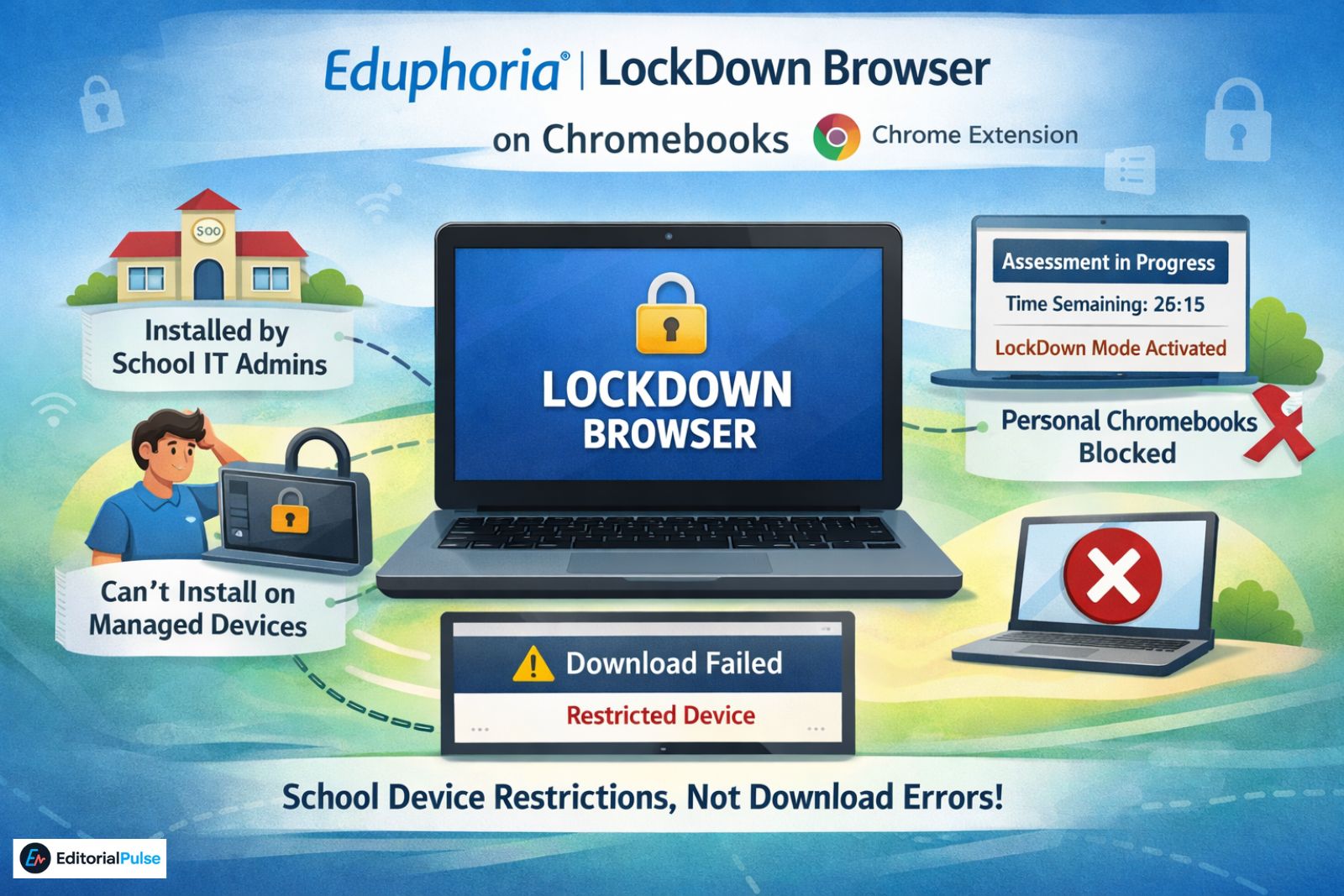
On Chromebooks, Eduphoria does not use a traditional downloadable app. Instead, it runs as a managed Chrome extension.
Key points students should know:
-
The extension is installed by school IT administrators
-
Students cannot manually install it on managed devices
-
It only activates during an assessment
-
Personal (non-managed) Chromebooks are usually blocked by policy
This is why many “download not working” issues are actually caused by district device restrictions, not software failures.
Supported Devices (2025)
| Device | Support Type | Notes |
|---|---|---|
| Windows | Native app | Full lockdown enforcement |
| macOS | Native app | Requires system permissions |
| Chromebook | Chrome extension | Must be school-managed |
| iPad | App Store app | Requires MDM + Automatic Assessment Mode |
| Personal devices | Limited | Subject to district MDM and assessment settings |
Most school districts block LockDown Browser on non-managed Chromebooks by policy.
What the LockDown Browser Can and Cannot Do
It Can Do
-
Lock students into an assessment
-
Block other applications and tabs
-
Disable screenshots and printing
-
Restrict keyboard shortcuts
It Cannot Do
-
Access personal files
-
Monitor phone activity
-
Record video or audio by default
-
Automatically accuse students of cheating
Important clarification: Eduphoria’s standard LockDown Browser focuses on environment control, not surveillance. Video or audio recording only occurs if a school separately enables Respondus Monitor, which is a paid add-on.
How Schools Detect Irregular Activity
The LockDown Browser itself primarily logs:
-
Early exits
-
Interrupted sessions
-
Submission anomalies
These indicators help teachers review test conditions. They do not automatically result in penalties and are evaluated in context.
Also Check: How to Get Around LockDown Browser (2025): The Truth
Common Problems (and Real Fixes)
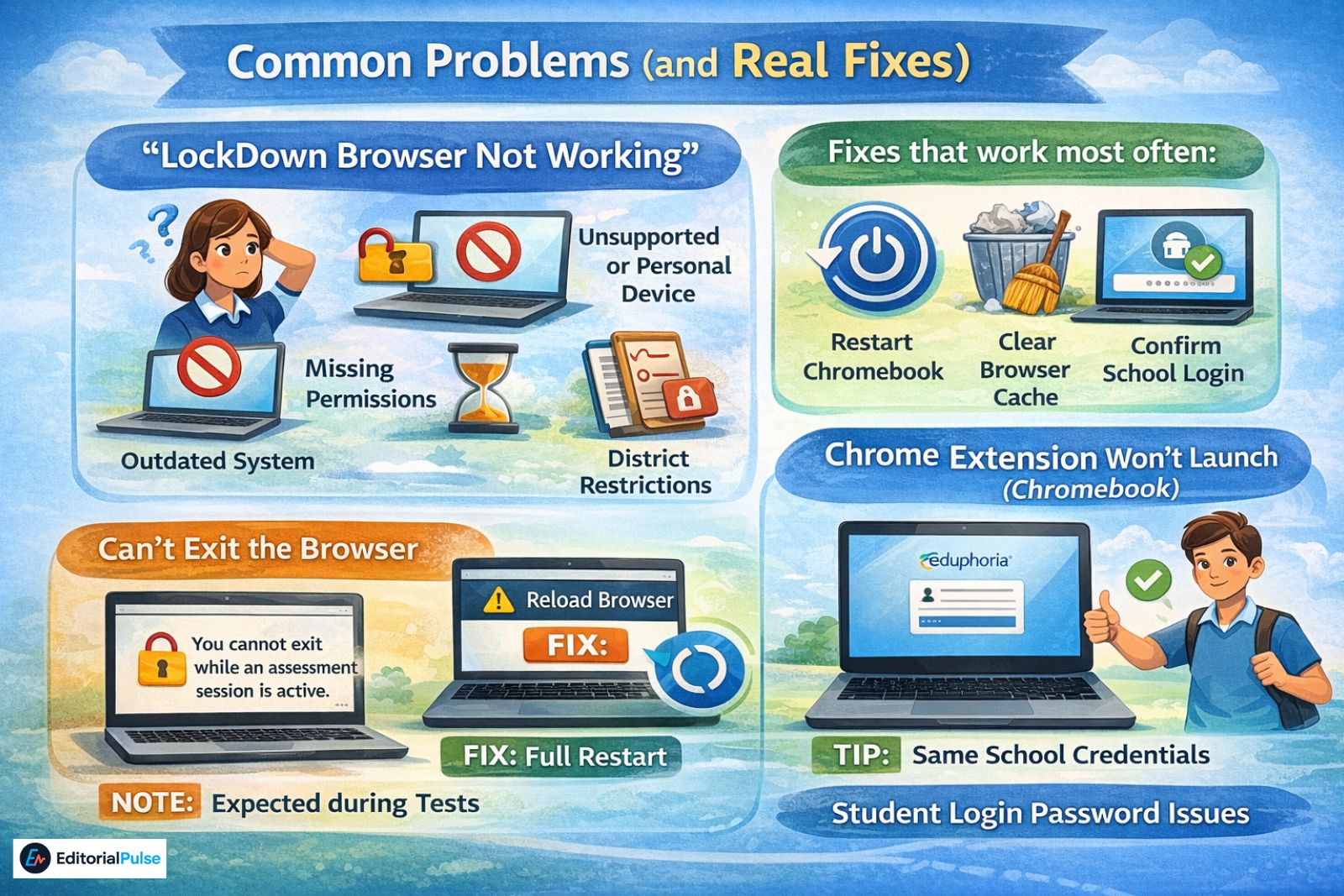
“LockDown Browser Not Working”
Common causes include:
-
Unsupported or personal device
-
Missing system permissions
-
Outdated operating system
-
District policy restrictions
“Chrome Extension Won’t Launch (Chromebook)”
Fixes that work most often:
-
Restart the Chromebook completely (not just closing the lid)
-
Clear the Chrome browser cache
-
Confirm you’re signed into the school-managed account
Version Check Tip (Windows & macOS)
Students can check their LockDown Browser version by clicking the information (ℹ️) icon or “Check for Update” button on the launch screen.
As of late 2025, Windows versions should be 2.1.3.07 or higher.
“Can’t Exit the Browser”
This is expected behavior during an active test. Forcing an exit may flag the session.
“Student Login Password Issues”
Eduphoria does not create a separate LockDown Browser password. Login uses the same school credentials as the assessment platform.
Common Student Mistakes
-
Installing LockDown Browser when the test doesn’t require it
-
Using a personal Chromebook instead of a school-managed one
-
Closing the browser mid-assessment
-
Ignoring permission prompts
Avoiding these prevents most test-day issues .For a deeper look at safe and reliable options, see our guide on Top Unblocked Browsers for School, Work & Privacy, where we explain how different tools work and when they’re appropriate.
2025 Best Practices for Students
-
Restart your device before testing
-
Use the device issued by your school
-
Close background apps before launching the test
-
Confirm whether LockDown Browser is required
-
Ask your teacher early if something doesn’t work
Preparation matters more than troubleshooting during the exam.
FAQs
Q. How do I get Eduphoria LockDown Browser on a Chromebook?
You do not install Eduphoria LockDown Browser yourself on a Chromebook. Schools deploy it as a managed Chrome extension on approved, school-managed devices. If your school does not manage your Chromebook, the LockDown Browser usually will not work.
Q. Does Eduphoria LockDown Browser record you?
No. Eduphoria LockDown Browser does not record video or audio by default. Recording only happens if the school separately enables Respondus Monitor, which is an additional, paid proctoring tool.
Q. Can teachers see if you leave the test while using LockDown Browser?
Yes. If you exit the test early, lose connection, or interrupt the session, those events are logged for review. These logs help teachers understand test conditions and do not automatically mean cheating.
Q. Is Eduphoria LockDown Browser the same as Respondus LockDown Browser?
They use the same underlying technology, but they are not the same platform. Respondus provides the LockDown Browser software, while Eduphoria integrates it directly into its assessment system. This is why you may see “Respondus” mentioned during installation or updates.
Q. Can I use Eduphoria LockDown Browser at home?
Yes, but only if your device meets your school district’s requirements. This usually means using a school-managed laptop, Chromebook, or iPad with the correct permissions and settings. Personal or unmanaged devices are often blocked.
Conclusion
The Eduphoria LockDown Browser exists to create a fair, distraction-free testing environment—not to spy on students. Most confusion comes from misunderstanding how schools deploy it, especially on Chromebooks and other district-managed devices.
When you understand when schools require it, how it operates, and what it actually controls, you can approach the experience with far less stress.
If you’re preparing for an assessment, the smartest move isn’t searching for workarounds—it’s making sure your device, permissions, and login are ready before test day.
Related: Shadow Browser (2025): Proxy Safety Warnings & Shadow PC Guide
| Disclaimer: This article is for informational purposes only. It does not provide guidance on bypassing or disabling Eduphoria LockDown Browser. Features and behavior may vary by school, device, and assessment settings. Always follow your school’s official testing policies and contact your administrator or IT support for assistance. |