If you manage VMware environments long enough, you eventually reach a point where the vSphere Client stops being helpful.
A monitoring tool asks for a managed object ID.
An API call fails without a clear error.
A PowerCLI script works in one environment but not another.
That’s when experienced administrators turn to the Managed Object Browser.
The managed object browser (MOB) is a built-in VMware interface that exposes the raw object model behind vCenter Server and ESXi. It shows your infrastructure exactly as VMware’s APIs see it—without UI abstraction, safety rails, or opinionated filtering.
This guide explains what the managed object browser is, how to access and enable it safely, why it’s disabled by default, and how senior VMware admins actually use it in 2025. It also covers Lockdown Mode limitations, deep-linking shortcuts, method invocation, and real-world risk—topics most guides gloss over or avoid entirely.
If you work with vSphere APIs, PowerCLI, monitoring platforms, or advanced troubleshooting, this is the resource you bookmark—not skim.
What Is the Managed Object Browser?
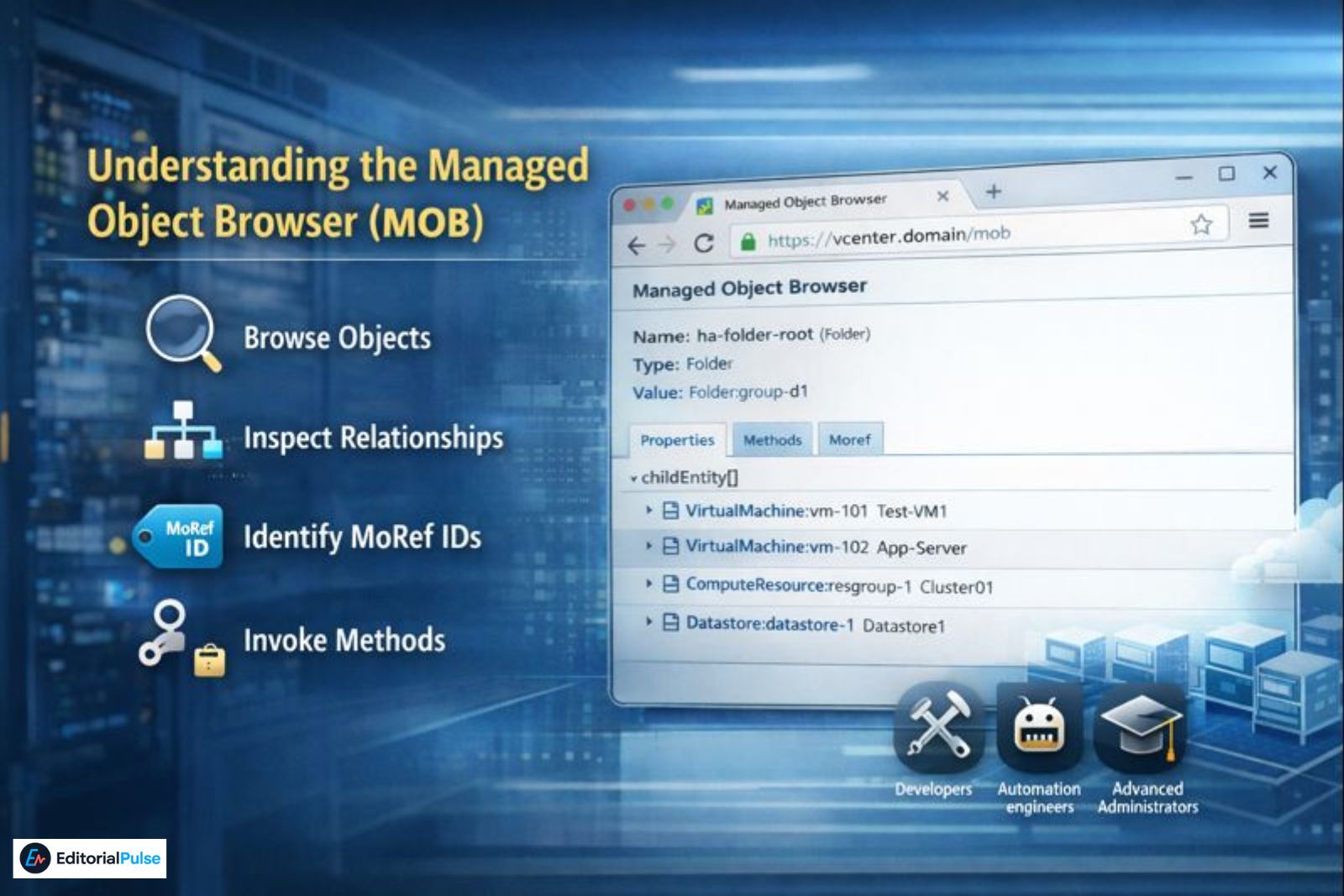
The Managed Object Browser is a web interface that exposes VMware’s Web Services API object model.
Every item in vSphere—virtual machines, hosts, clusters, datastores—exists internally as a managed object. The vSphere Client presents a simplified view of those objects. The MOB exposes them directly.
With the MOB, you can:
-
Browse managed objects and their properties
-
Inspect object relationships and dependencies
-
Identify managed object references (MoRef IDs)
-
View API-level state not shown in the UI
-
Invoke methods directly against objects
The MOB is intended for developers, automation engineers, and advanced administrators—not routine infrastructure management.
Managed Object Browser vs vSphere Client
| Feature | Managed Object Browser | vSphere Client |
|---|---|---|
| Interface | Raw web UI | Polished GUI |
| Object visibility | Full object graph | Filtered |
| API methods | Fully exposed | Abstracted |
| Risk level | High if misused | Low |
| Intended audience | Advanced users | All admins |
Key point:
The vSphere Client hides complexity for safety. The managed object browser exposes everything—including actions that can immediately change state.
⚠️ Critical Safety Warning: MOB Is Not Read-Only
This must be stated plainly:
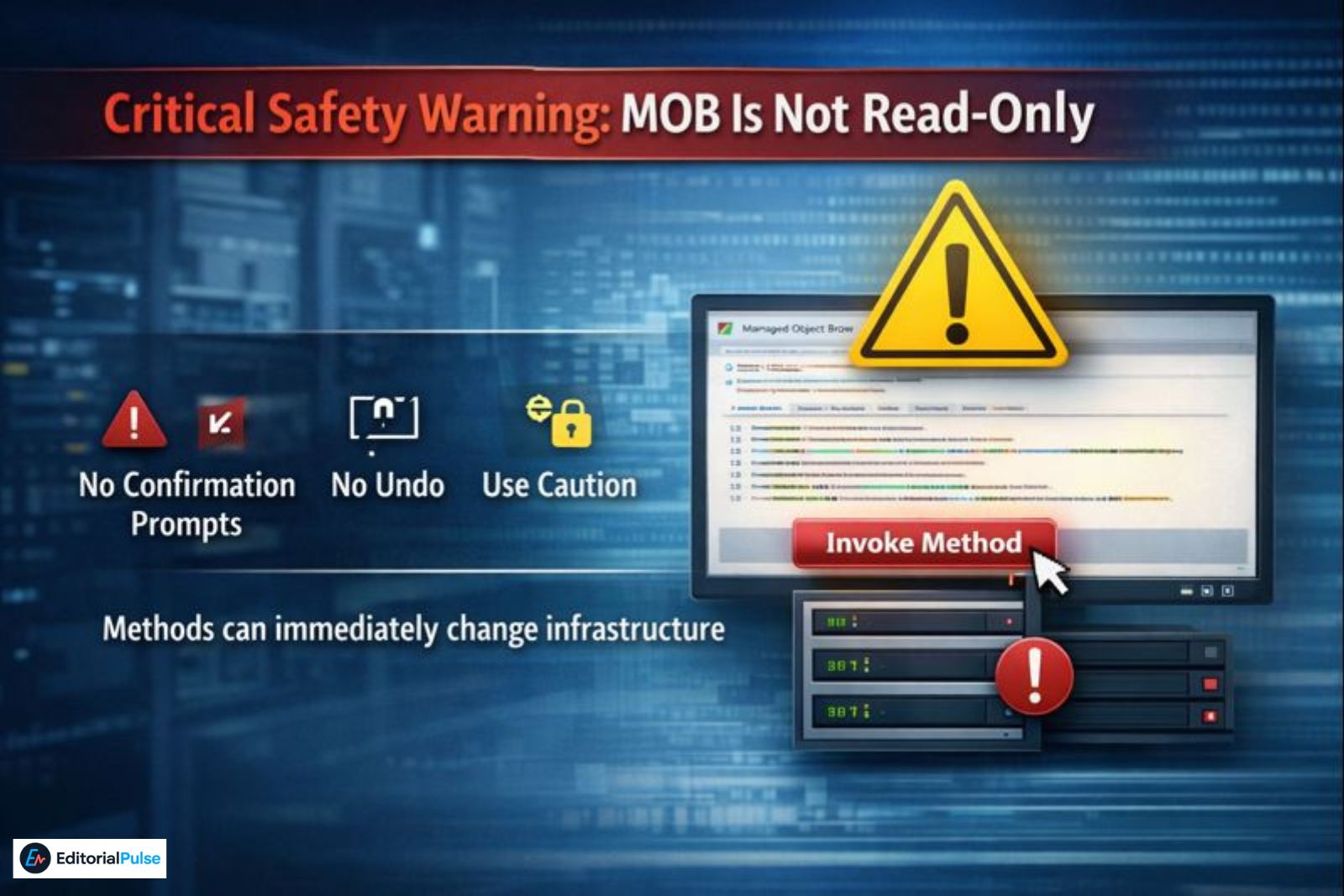
The Managed Object Browser is not a read-only interface.
While many pages appear informational, numerous methods mutate infrastructure state immediately when invoked.
There are:
-
No confirmation prompts
-
No undo mechanism
-
No UI guardrails
Production best practice (2025):
-
Treat every MOB method as a live API call
-
Never experiment on production objects
-
Enable MOB only temporarily, then disable it
This framing aligns with VMware hardening guidance and enterprise compliance expectations.
How the Managed Object Browser Works
The MOB is essentially a live, navigable view of the VMware Web Services SDK.
Each page represents:
-
A managed object type (for example,
VirtualMachine) -
A specific object instance (via MoRef ID)
-
Properties exposed through the API
-
Methods callable via structured parameters
PowerCLI, REST APIs, SDKs, and third-party monitoring tools all interact with this same object graph. The MOB simply lets you see it directly.
Also Check: SPYPOINT Web App (2025): How It Works, Login, Limits, and Fixes
How to Access the Managed Object Browser
vCenter Server
Authenticate using a vCenter user account.
ESXi Host
Authenticate using ESXi credentials.
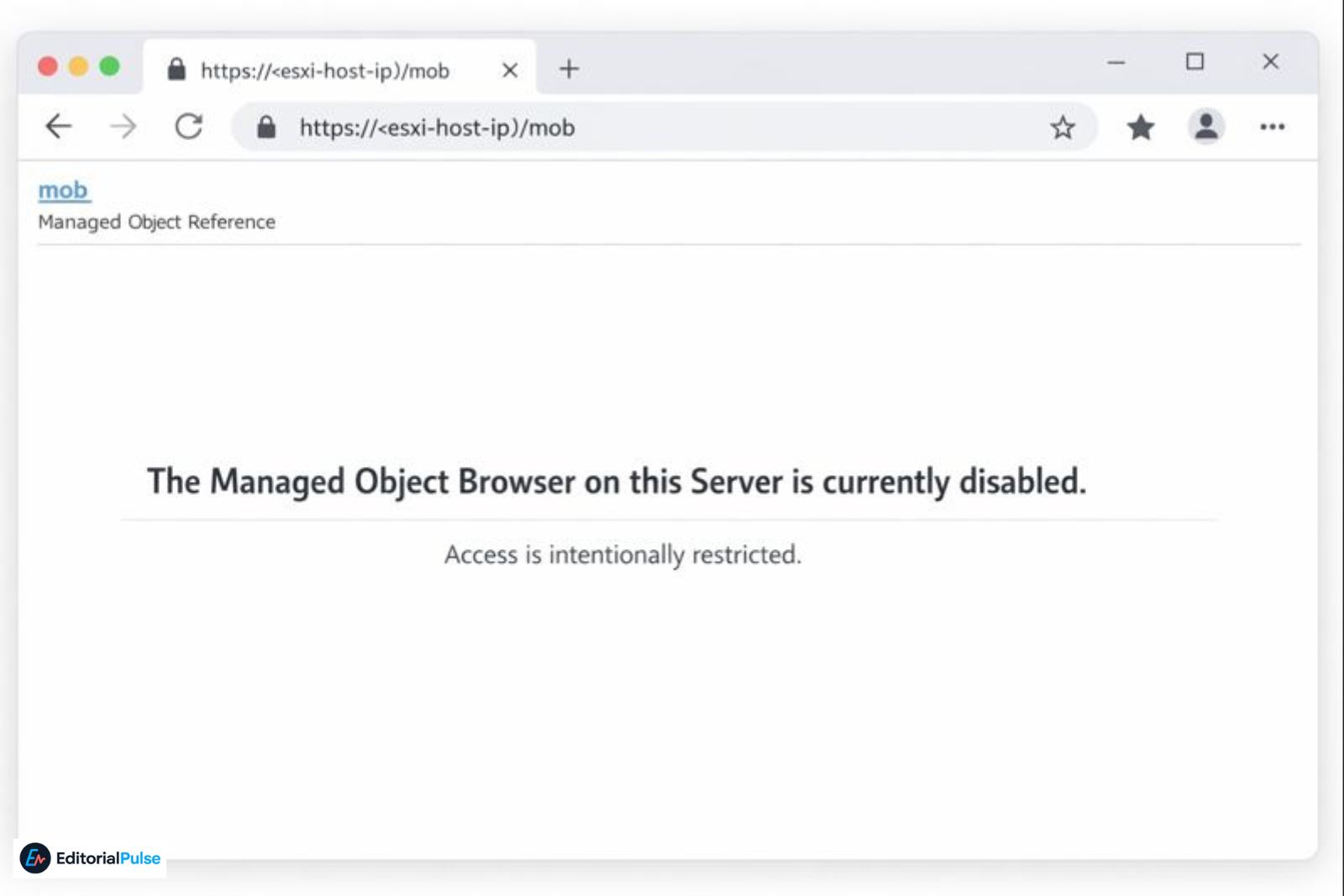
If you see “The Managed Object Browser on this Server is currently disabled”, access is intentionally restricted.
Why the Managed Object Browser Is Disabled by Default
In vSphere 7.x and 8.x, VMware increasingly treats the MOB as debug tooling, not a standard admin interface.
Primary reasons:
-
Expanded attack surface
-
Direct method invocation risk
-
Exposure of sensitive infrastructure metadata
-
Bypassing vSphere Client safety controls
This behavior aligns with VMware security hardening benchmarks and CIS guidance.
How to Enable and Disable the Managed Object Browser (CLI & PowerCLI)
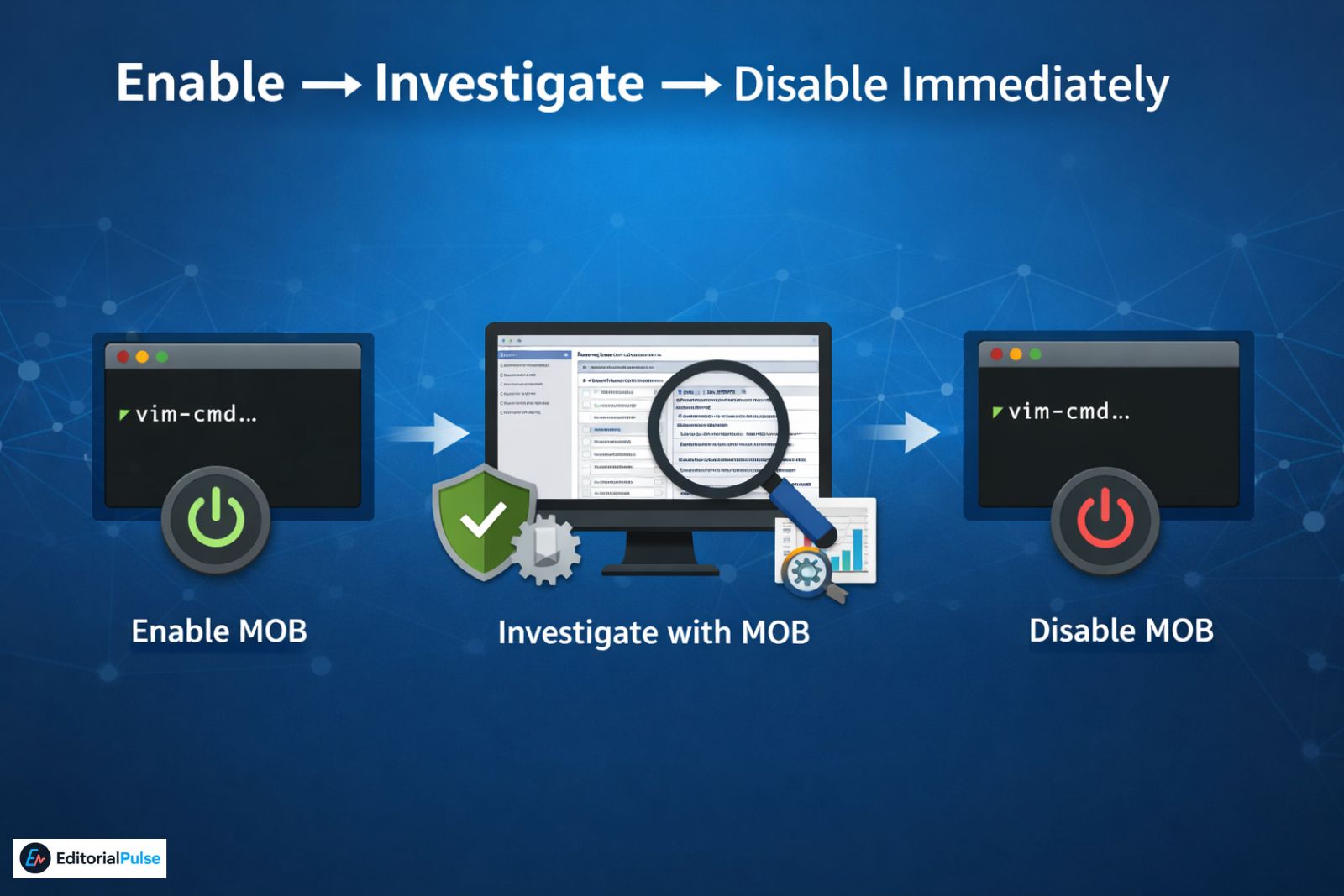
Enable MOB on ESXi (Shell)
Disable it after use:
Enable MOB via PowerCLI
Disable:
Best practice: Enable → investigate → disable immediately.
Lockdown Mode Caveat (Most Common “MOB Not Working” Cause)
Even with MOB enabled, access may still fail.
Strict Lockdown Mode
If an ESXi host is in Strict Lockdown Mode, all direct API access is blocked, including the Managed Object Browser.
This applies even when:
-
MOB is enabled
-
Services are running
-
Credentials are correct
How to Regain Access (Temporarily)
You must do one of the following:
-
Switch to Normal Lockdown Mode, or
-
Add your account to Exception Users
This restriction primarily affects ESXi host MOB, not vCenter MOB.
What Is a Managed Object ID (MoRef)?
A Managed Object Reference (MoRef) is VMware’s internal identifier for each object.
Examples:
-
vm-421 -
host-78 -
datastore-203
MoRefs are required by:
-
Monitoring platforms
-
Automation frameworks
-
APIs and SDKs
-
Large-scale PowerCLI scripts
The MOB is often the fastest and most reliable way to identify them.
Also Check: Learn-Duck.web.app (2025 Guide): What It Is & How to Use It Safely
Deep-Linking in the MOB (The Hidden Shortcut)
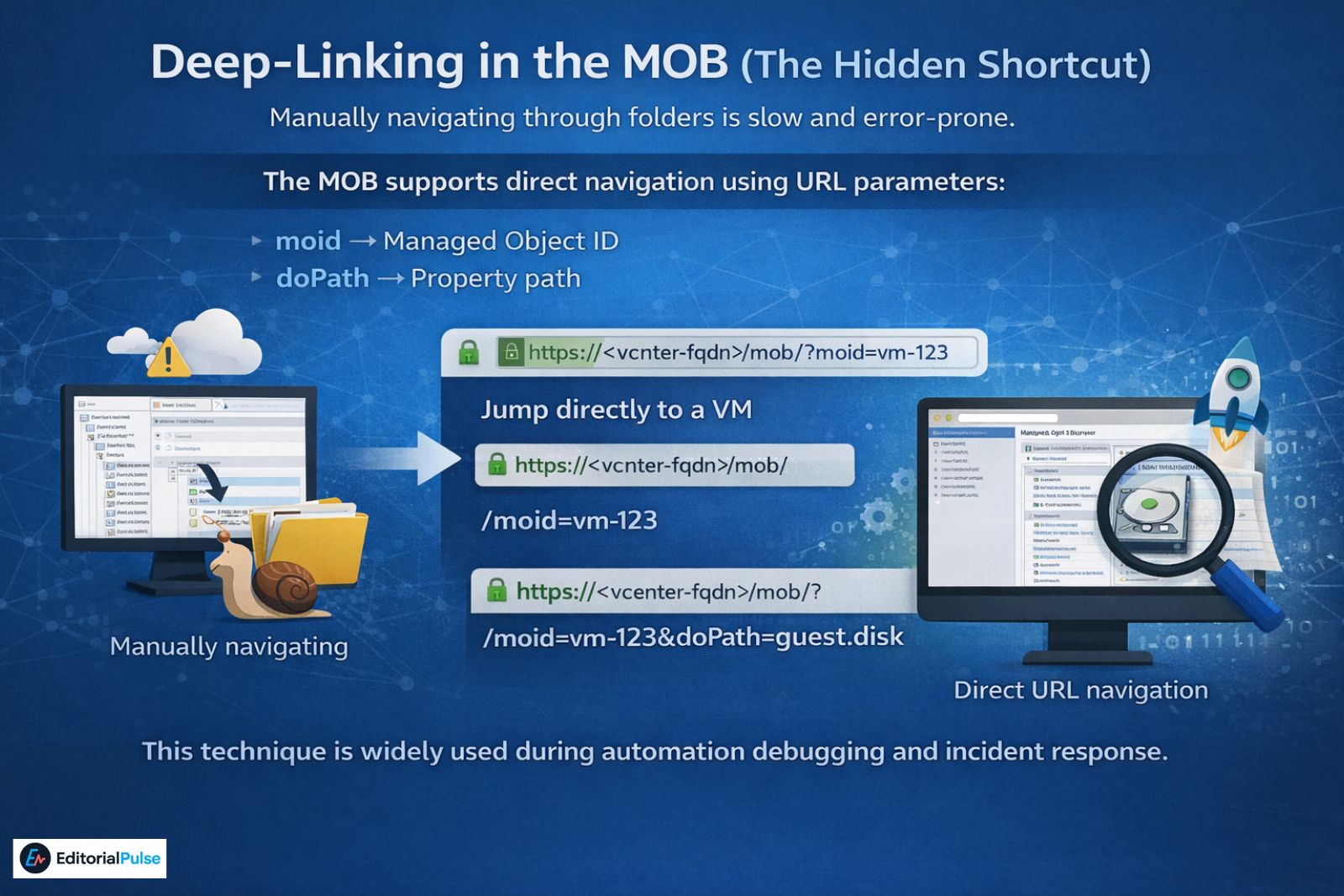
Manually navigating through folders is slow and error-prone.
The MOB supports direct navigation using URL parameters:
-
moid→ Managed Object ID -
doPath→ Property path
Jump directly to a VM
View guest disk information
This technique is widely used during automation debugging and incident response.
Method Invocation Example (Power-User Level)
The MOB allows direct method invocation—the same calls used by APIs and automation tools.
Example: Trigger a Guest OS Shutdown
Use case: Validate VMware Tools responsiveness or API behavior.
Steps:
-
Open the VM object
-
Locate the method
ShutdownGuest -
Click the method name
-
Review parameters (many require none)
-
Click Invoke Method
If VMware Tools is running, the guest OS receives a graceful shutdown request.
⚠️ Never test unfamiliar methods on production storage, networking, or cluster objects.
Real-World Production Incident (Why Caution Matters)
During a routine automation investigation in a large enterprise vCenter environment, an administrator used the Managed Object Browser to inspect datastore properties. While navigating available methods, a storage-related function was accidentally invoked, triggering an immediate refresh operation on a production datastore during peak hours. No data was lost, but several virtual machines experienced brief I/O latency spikes, leading to alerts and an internal incident review.
Lesson learned:
The MOB executes actions instantly and without confirmation. Treat it with the same discipline as a live production API call.
Read-Only Mindset Checklist (Before Using the MOB)
Before clicking any method, pause and verify:
-
☐ Am I using the least-privilege account required?
-
☐ Do I fully understand what this method does at the API level?
-
☐ Could this method change state immediately?
-
☐ Is this a production object?
-
☐ Would I run this same call via PowerCLI or REST?
-
☐ Is there a safer read-only alternative?
-
☐ Do I have change approval if this is non-read-only?
If any answer causes hesitation, stop and reassess.
This checklist reflects how experienced VMware teams handle MOB access in audited environments.
Also Read: FCKeditor inurl:/editor/filemanager/browser/: Secure Your Site Now (2025)
Managed Object Browser vs MIB Browser
These tools are often confused—but they are unrelated.
| Tool | Purpose |
|---|---|
| Managed Object Browser | VMware API object inspection |
| MIB Browser | SNMP management |
Mixing them up leads to incorrect troubleshooting paths.
Common Mistakes When Using the MOB
-
Assuming it’s read-only
-
Leaving it enabled permanently
-
Ignoring Lockdown Mode
-
Using high-privilege credentials casually
-
Testing methods on production systems
Rule of thumb:
If you wouldn’t run the call in automation, don’t invoke it in the MOB.
When You Should (and Shouldn’t) Use the MOB
Use MOB When:
-
Debugging API or SDK behavior
-
Investigating monitoring data
-
Mapping MoRef IDs
-
Troubleshooting automation failures
Avoid MOB When:
-
Routine administration is sufficient
-
Access cannot be tightly controlled
-
Junior admins lack context
2025 Best Practices Summary
-
Enable only when needed
-
Restrict access tightly
-
Log usage where possible
-
Disable immediately after use
-
Prefer PowerCLI and REST APIs for routine tasks
VMware continues to push API-first workflows. The MOB remains a powerful fallback—not a daily tool.
FAQs
Q. What is a managed object browser?
A managed object browser is a VMware web interface that exposes vCenter Server and ESXi objects exactly as they appear in VMware’s API, allowing advanced users to inspect properties, relationships, and methods.
Q. How do I disable the managed object browser?
You disable the managed object browser by disabling the ESXi advanced setting, restricting API access, or applying VMware hardening policies depending on your environment.
Q. What is the object browser in Visual Basic?
The Visual Basic object browser lists programming classes and methods. It is unrelated to VMware’s managed object browser, which focuses on infrastructure objects.
Q. What is the managed object ID in vCenter?
A managed object ID (MoRef) is VMware’s internal identifier for objects such as VMs, hosts, and datastores, used by APIs, monitoring tools, and automation scripts.
Q. Why is the managed object browser disabled by default?
VMware disables it by default to reduce security risk, prevent accidental API misuse, and limit exposure of sensitive infrastructure data.
Q. Is it safe to use the managed object browser?
Yes—when enabled temporarily, accessed securely, and used by experienced administrators. It is unsafe to leave enabled permanently.
Conclusion
The managed object browser is one of VMware’s most powerful diagnostic tools—and one of its most dangerous if misunderstood.
Used correctly, it reveals how vSphere actually works beneath the UI: raw objects, real identifiers, and live API behavior. Used carelessly, it bypasses safeguards that exist for good reason.
In 2025, the correct approach is deliberate and disciplined: enable briefly, inspect carefully, disable immediately. When paired with PowerCLI, REST APIs, and strong security controls, the MOB becomes an indispensable tool for advanced VMware administrators.
Related: How to Know If Respondus LockDown Browser Is Recording You (2025)
| Disclaimer: This article is for informational purposes only. The Managed Object Browser (MOB) exposes low-level VMware API functions and is intended for experienced administrators. Actions taken through the MOB can immediately affect the system state. Always follow your organization’s change management and security policies, and test in non-production environments where possible. The author is not responsible for any impact resulting from the use of this information. |