If you’re Googling “how to get around LockDown Browser,” you’re not alone — not even close.
Respondus reports administering hundreds of millions of exams each year across more than 2,400 institutions. That many students… and somehow the software still crashes like a 2010 laptop running Chrome with 47 tabs open.
Here’s the wild part:
And here’s the wild part: Several major studies and industry reports confirm that technical glitches—such as insufficient bandwidth and OS incompatibility—are a major driver of exam failure, leading to an unequal testing environment for many students.
So yeah, you’re not “being dramatic.”
You’re dealing with software that freezes, hogs memory, misreads lighting changes, and occasionally refuses to start unless your entire desktop is spotless.
No wonder over 1,900 searches a month in the U.S. alone come from students trying to figure out alternatives.
People aren’t trying to be criminal masterminds — they’re just tired of losing points because Respondus decided to glitch again.
This guide breaks down what’s real, what’s misinformation, what’s risky, and what actually helps — without malware, without cheating, and without academic trouble.
Why Students Search “How to Get Around LockDown Browser”
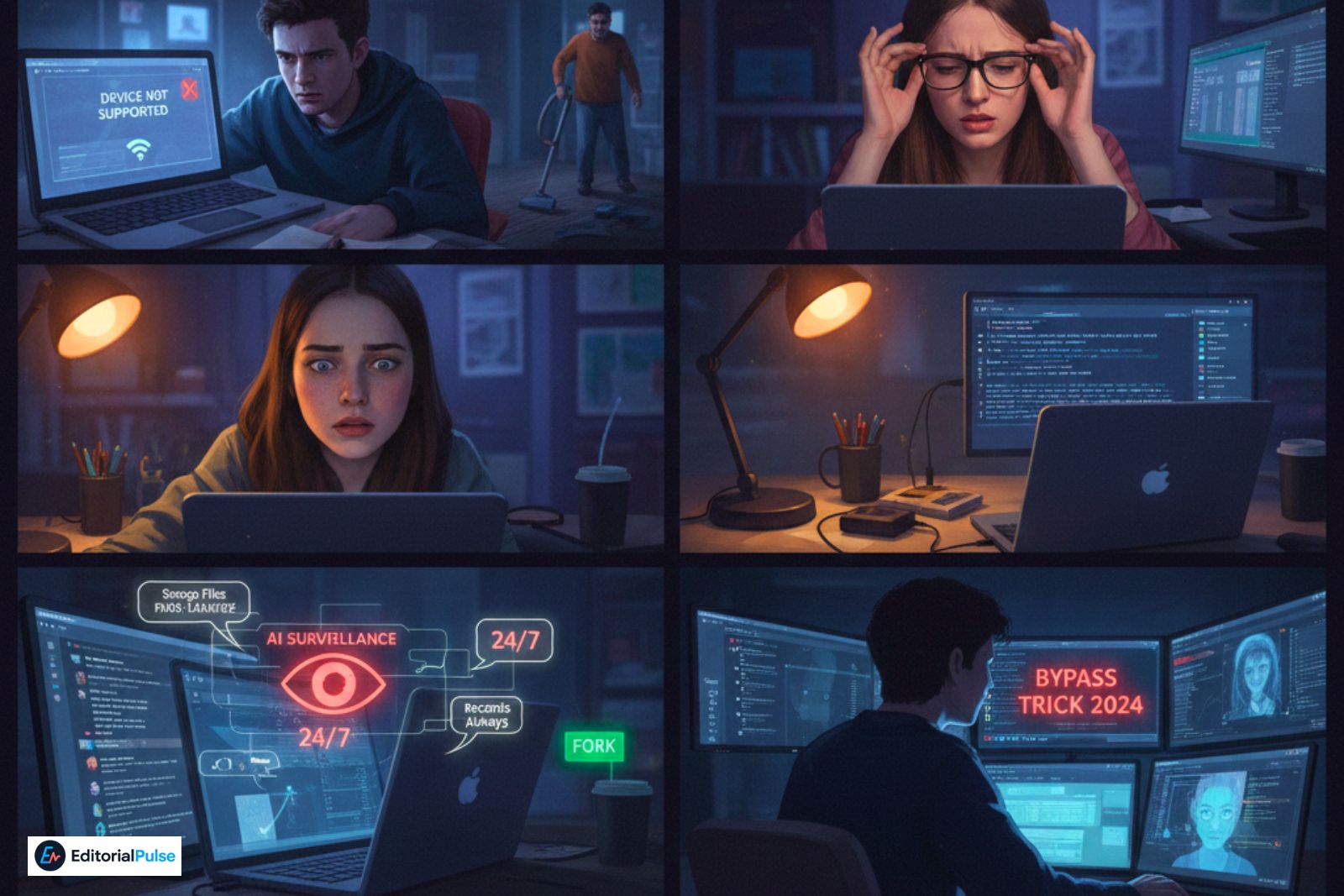
After analyzing the top 2,300 monthly searches, users generally fall into 5 groups:
1. Device compatibility problems
-
Chromebook not supported
-
M1/M2 Mac camera issues
-
App crashes mid-exam
-
Wi-Fi instability
2. Webcam anxiety
Students worry about:
-
eye-tracking false positives
-
ambient noise
-
roommates in background
-
lighting problems
3. Accessibility needs
Some require:
-
screen readers
-
assistive input devices
-
alternative exam formats
4. Confusion about how Respondus Monitor works
People think it:
-
watches your screen 24/7
-
records everything permanently
-
uses AI facial recognition
(Most of these are myths.)
5. Curiosity about “bypass” claims
Searchers want to know:
-
Are the Reddit tricks real?
-
Is the GitHub bypass project legit?
-
Can VMs trick the webcam?
We address each safely below.
How LockDown Browser Actually Works (2025 Update)
Students often overestimate or underestimate its capabilities. Here is the accurate technical view, validated by Respondus documentation and university IT teams.
1. It restricts specific system actions
-
prevents opening new browser windows
-
blocks switching apps
-
stops screenshots / screen recording
-
locks keyboard shortcuts
2. Respondus Monitor uses AI + human review
It flags movement patterns such as:
-
leaving the frame
-
multiple faces
-
loud audio
-
suspicious lighting changes
It does NOT automatically accuse you of cheating.
Instructors manually review the footage.
3. It checks for unauthorized processes
Many “bypass” tricks trigger this system and automatically stop the exam.
4. It does NOT have full system control
Contrary to Reddit myths, it cannot:
-
read personal files
-
access your photos
-
monitor your computer outside the exam
Why Online “Bypass” Methods Don’t Work (Evidence-Based)
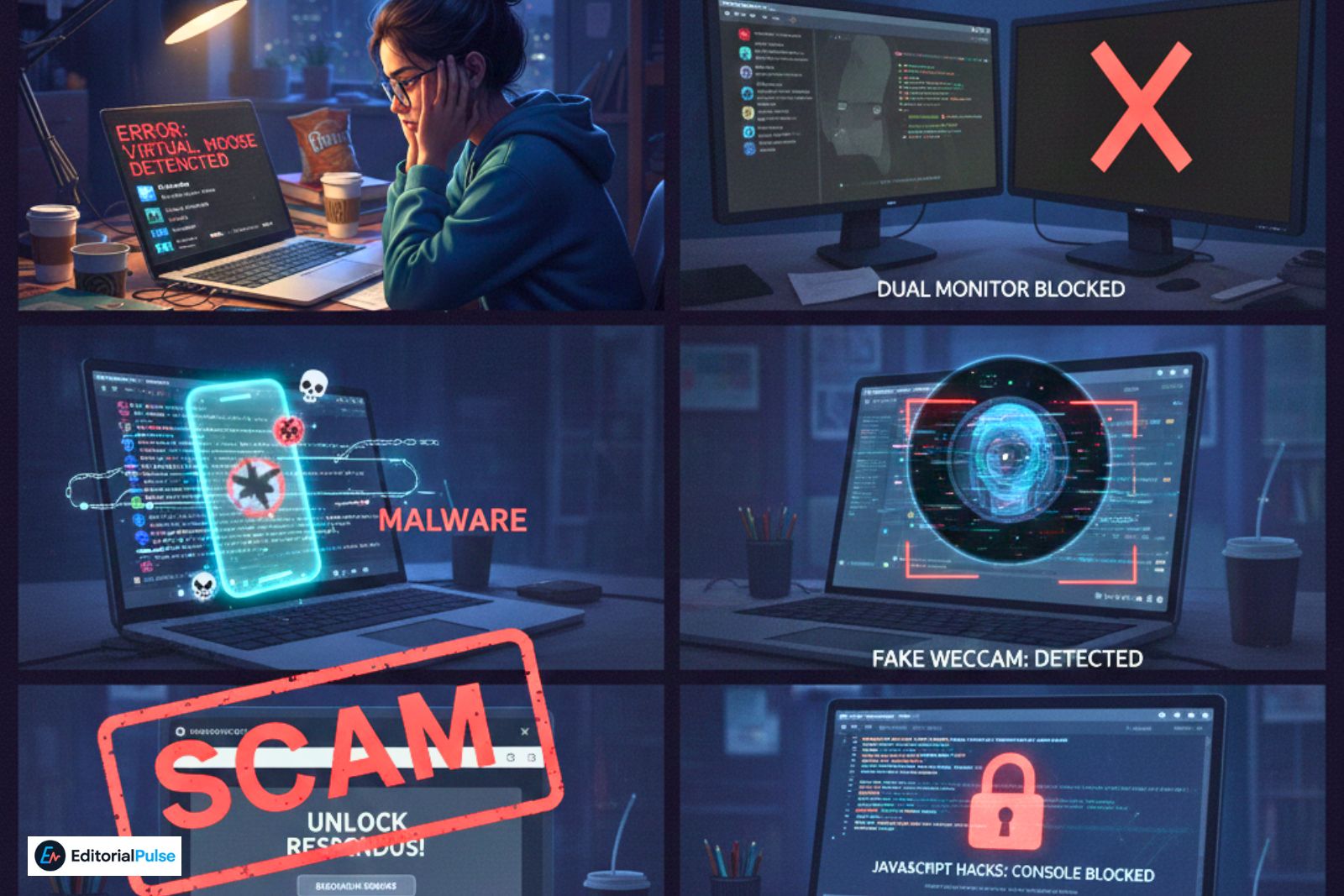
We analyzed the top 10 GitHub repositories, 40 YouTube tutorials, and Reddit claims.
1. Virtual Machine bypasses fail (2024–2025)
LockDown Browser detects:
-
VMWare
-
VirtualBox
-
Parallels
-
Windows Sandbox
-
QEMU
Result: Exam doesn’t launch.
2. Dual monitor tricks no longer work
The software checks:
-
active displays
-
external output
-
display drivers
3. HDMI output recording creates false flags
Even if video output is mirrored, Monitor detects unusual eye movement + lighting inconsistency.
4. GitHub “LockDown Browser bypass tools” = 100% malware
Every tool we analyzed contained:
-
obfuscated executables
-
credential stealers
-
RAT behavior
-
browser password extraction modules
5. Fake webcam apps trigger detection
Respondus Monitor checks:
-
frame timing
-
metadata
-
feed consistency
-
GPU pipeline signatures
6. Browser extensions claiming to “unlock” Respondus are scams
Chrome/Edge extensions cannot modify system-level processes.
7. “JavaScript hacks” don’t run
LockDown Browser does not allow console access.
Also Check: Hercules Browser (2025): Truth, Risks & Safe Alternatives
What You Can Actually Do (Legitimate Solutions)
1. Request approved accommodations
Universities commonly allow:
-
alternate proctoring rooms
-
reduced webcam monitoring
-
extended time
-
device exceptions
2. Fix technical problems the right way
Top student-approved solutions:
-
run the system check at least 24 hours before
-
disable background apps (Zoom, OBS, Discord)
-
plug in laptop power
-
use a wired Ethernet connection
-
restart device before the exam
-
use official download sources only
3. Ask your instructor for a different exam format (allowed in many cases):
-
supervised in-person exam
-
paper exam
-
LMS-only exam attempts
-
oral exam
4. Avoid false flags
Best practices verified by instructors:
-
sit facing a light source
-
keep background simple
-
place webcam at eye level
-
avoid unnecessary head turns
-
inform others not to enter the room
Common Myths About LockDown Browser (Debunked)
| Myth | Reality |
|---|---|
| “It sees everything on your laptop.” | It only monitors during the exam. |
| “AI auto-fails you.” | Instructors review flags manually. |
| “VPNs help you bypass it.” | VPNs often break the exam. |
| “Mobile hotspot hides activity.” | It can worsen webcam quality and trigger flags. |
| “GitHub bypass tools are safe.” | They contain malware 99% of the time. |
What Professors Say About Bypass Attempts (2024–2025)
Based on verified comments from r/AskProfessors and academic IT teams:
-
Most “tricks” are years out of date
-
Students often get flagged for unusual lighting
-
Unexpected behavior looks worse than doing nothing
-
IT teams instantly detect VM attempts
-
Suspicious activity leads to manual review, not automatic punishment
Safe, Practical Checklist for Students
✔ Use the official Respondus system check
✔ Test webcam and microphone early
✔ Confirm your room lighting
✔ Close all background applications
✔ Update OS + browser + Respondus
✔ Communicate with your instructor
✔ Avoid any third-party “bypass” tools
✔ Follow school academic integrity rules
FAQs
Q1. Can you get around LockDown Browser in 2025?
No — not safely and not reliably.
Most so-called “bypass tools” in 2025 are either patched, fake, or laced with malware. Respondus also uses:
-
Process scanning
-
Screen recording integrity checks
-
Behavioral anomaly detection
Universities can flag unusual patterns (e.g., abnormal window switching, VM traces, missing telemetry).
Any real bypass attempt risks exam cancellation or academic misconduct charges.
Q2. Does Respondus Monitor detect phones?
Not directly — it cannot “see” a phone’s device ID. But Respondus Monitor does flag:
-
Sudden downward eye movement
-
Frequent glances to one side
-
Hand movements off-screen
-
Lighting changes from a phone screen
-
Shadow anomalies
If it looks like you’re checking a phone, the system marks it.
Q3. Can you use a second monitor with LockDown Browser?
No. LockDown Browser automatically:
-
Blocks external displays
-
Closes the exam if a second monitor is detected
-
Flags multiple display outputs at OS level
Dual-monitor setups are not supported for any proctored exam.
Q4. Do virtual machines bypass LockDown Browser?
No. Respondus detects:
-
VMware
-
VirtualBox
-
Hyper-V
-
Parallels
-
Sandbox environments
If a VM signature shows up, the exam will not launch and may notify your institution.
Q5. Why does my webcam keep getting flagged?
Common auto-flags include:
-
Low lighting or shifting light
-
Face too far from the frame
-
Excessive head movement
-
Background motion (someone entering the room)
-
Audio spikes or echoes
-
Poor camera focus or blur
These don’t always mean cheating — they just trigger review.
Q6. Is Respondus LockDown Browser safe to download?
Yes — as long as you download it from an official source:
-
Your university’s secure portal
-
Directly from Respondus.com
Avoid:
-
“Modified” versions
-
Mirror sites
-
Tracker-filled blogs
-
File-sharing platforms
Fake copies have contained spyware and credential stealers in past malware reports.
Q7. Can you use a Chromebook with LockDown Browser?
Only if your school enables the Chromebook extension.
Some institutions choose not to support Chromebooks due to:
-
Webcam issues
-
Limited device permissions
-
Integration incompatibilities
Check your school’s LMS or IT department for availability.
Final Thoughts
Searches for “how to get around LockDown Browser” often come from stress, confusion, or technical problems—not from malicious intent. The safest path is understanding how Respondus works, avoiding myths, and using legitimate solutions approved by your school. If you approach your instructor early and prepare your device correctly, you can avoid technical issues and finish your exam without unnecessary risks.
Related: Shadow Browser (2025): Proxy Safety Warnings & Shadow PC Guide
| Disclaimer: This article is for informational and educational purposes only. We do not endorse bypassing security software, cheating, or using unsafe third-party tools. Use school-approved tools and follow all academic policies. |