When an online exam requires Respondus LockDown Browser, it’s natural to pause before starting and ask:
Is this exam recording me—and how can I tell?
In 2025, that question matters more than ever because exams can use different levels of monitoring, even within the same course. Some exams use automated recording, some rely on live proctoring, some record only the screen, and others use no recording at all.
To be precise:
-
Automated recording refers to Respondus Monitor
-
Live proctoring refers to separate video tools such as Zoom, Microsoft Teams, or Google Meet
This guide explains every recording scenario currently used with Respondus, what visible signs confirm each one, who controls these settings, and how the software behaves on Windows and macOS in 2025—so you can begin your exam with clarity and confidence and know how to know if Respondus LockDown Browser is recording you.
Respondus LockDown Browser vs Respondus Monitor
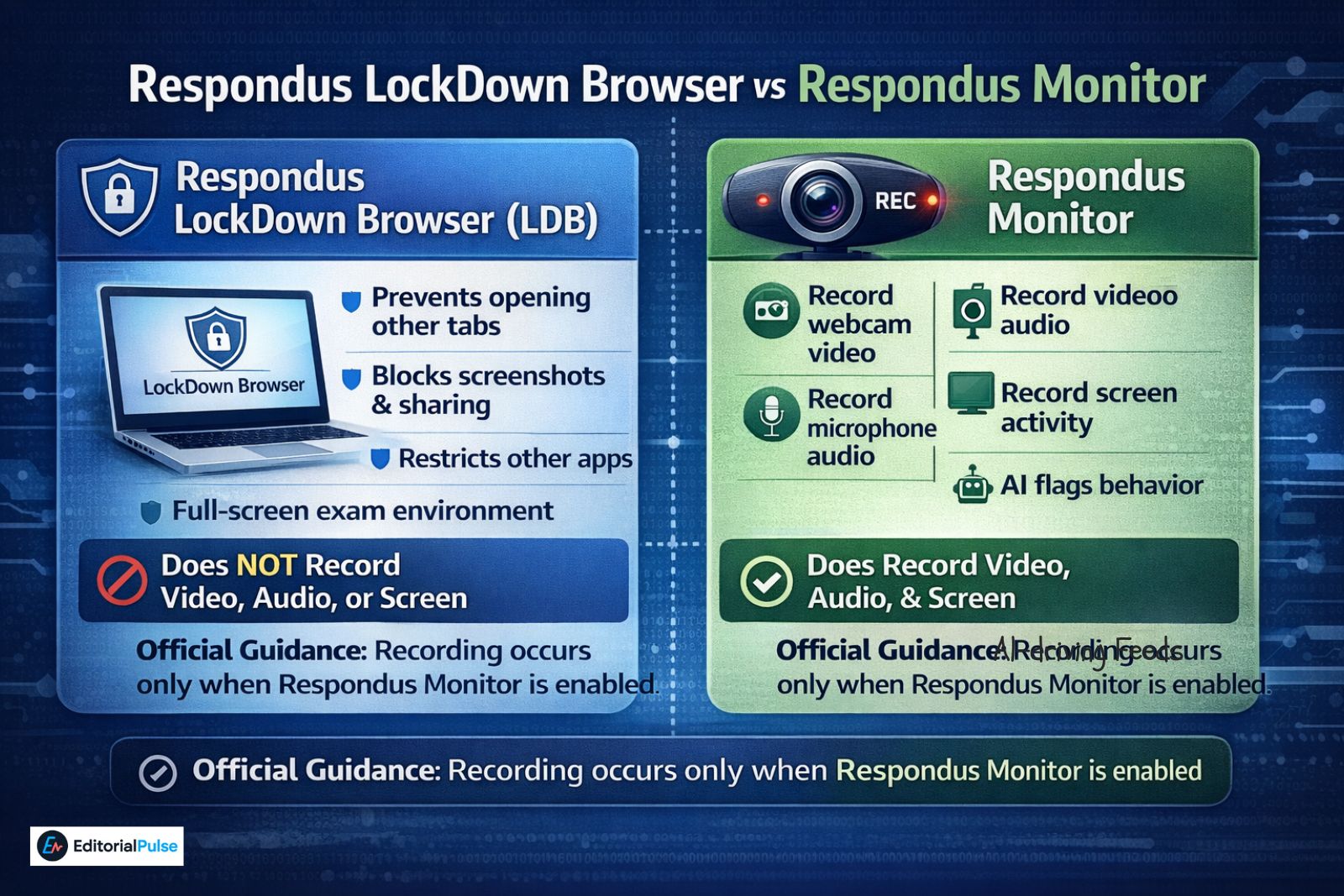
Respondus LockDown Browser (LDB)
LockDown Browser is a secure exam browser, not a recording tool.
It:
-
Prevents opening other browser tabs
-
Blocks screenshots, screen sharing, and printing
-
Restricts access to other applications
-
Keeps the exam in a controlled, full-screen environment
LockDown Browser alone does not record video, audio, or your screen.
Respondus Monitor (Automated Recording)
Respondus Monitor is a separate proctoring feature that instructors may enable for a specific exam.
When enabled, Respondus Monitor can:
-
Record webcam video
-
Record microphone audio
-
Record screen activity
-
Use AI flagging to highlight behaviors for instructor review
Official Guidance on Respondus Recording:
According to Respondus documentation and widely published university IT exam policies, recording occurs only when Respondus Monitor is explicitly enabled and disclosed before the exam begins.
Who Controls These Settings?
Recording behavior is not automatic.
-
Instructors decide whether to enable Respondus Monitor
-
Institutions define approved proctoring methods
-
Each exam can use different settings—even within the same course
Respondus provides the tools, but it does not decide how they are used.
How to Know If Respondus Is Recording You
Respondus does not hide recording. Every method requires visible confirmation.
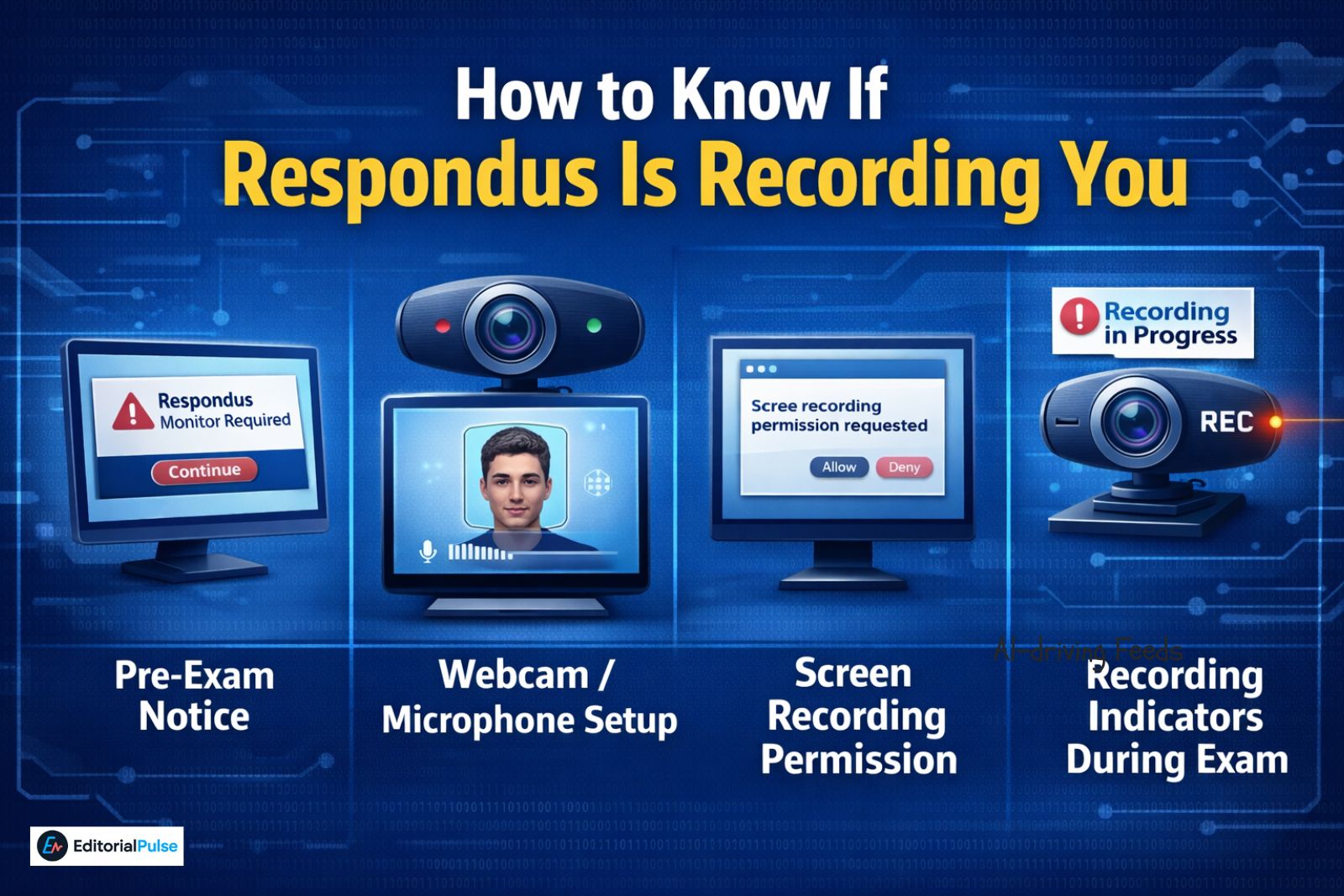
1. Explicit Pre-Exam Notice
Before the exam begins, you will see a notice stating that the exam requires Respondus Monitor or requires monitoring.
If the exam only requires LockDown Browser, this notice will not appear.
2. Webcam and Microphone Setup (Standard Monitoring)
If video or audio recording is enabled, you will go through a setup sequence that may include:
-
Webcam preview
-
Microphone sound test
-
Face positioning
-
Lighting check
-
Optional room scan (if required)
No setup sequence means no webcam or audio recording.
3. Screen Recording Permission (Including “Screen Only Mode”)
The “Screen Only” Exception (2025)
Some exams use Screen Only mode in Respondus Monitor.
In this configuration:
-
Your screen is recorded
-
Your webcam is not used
-
Your microphone may or may not be used, depending on settings
You will still know this is happening because Respondus must request permission:
-
macOS: OS-level Screen Recording permission
-
Windows: A specific screen-recording notice during startup
No screen recording permission request = no screen recording.
4. Recording Indicators During the Exam
When Respondus Monitor is active (video, audio, or screen-only), you may see:
-
A monitoring status message
-
A recording indicator
-
A webcam preview (if video is enabled)
These indicators remain visible during the exam session.
Also Check: Hercules Browser (2025): Truth, Risks & Safe Alternatives
How to Spot Live Proctoring (Zoom / Teams / Meet)
Live proctoring is not Respondus Monitor. It uses third-party video tools alongside LockDown Browser.
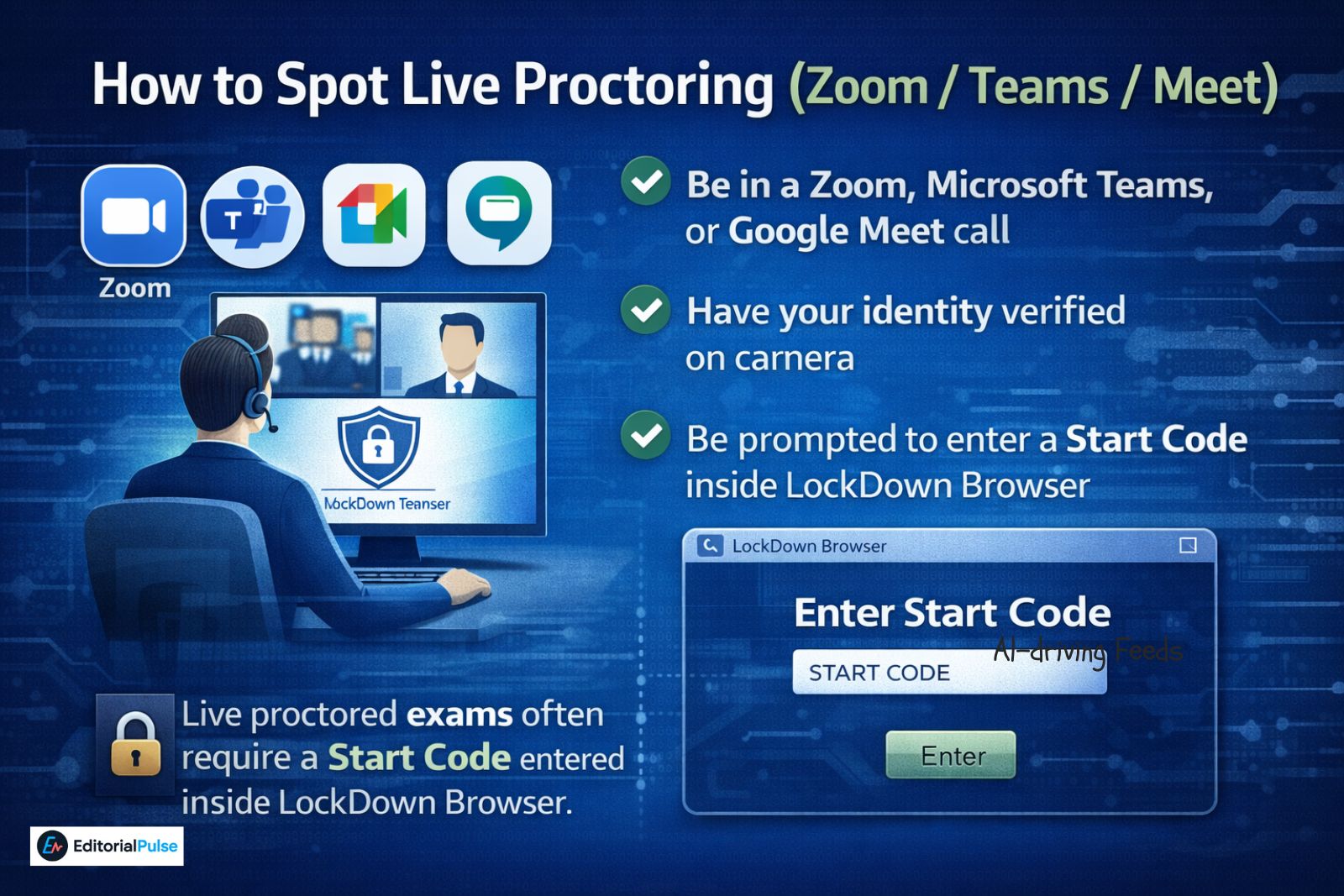
Common Signs of Live Proctoring
If live proctoring is used, you will typically:
-
Be in a Zoom, Microsoft Teams, or Google Meet call
-
Have your identity verified on camera
-
Be prompted to enter a Start Code inside LockDown Browser
The “Start Code” (Strong Signal)
In 2025, many live-proctored exams require a Start Code:
-
The code is provided by the instructor or proctor
-
You receive it after identity verification
-
The exam cannot begin without it
If LockDown Browser asks for a Start Code, someone is very likely observing the session live.
What Respondus Records (When Monitor Is Enabled)
| Activity | Recorded |
|---|---|
| Webcam video | Yes (unless Screen Only mode) |
| Microphone audio | Yes (if enabled) |
| Screen activity | Yes |
| Browser tabs | No (tabs are blocked) |
| Personal files | No |
| Activity outside the exam | No |
| Phone usage | No (indirect cues only) |
Also Read: Eduphoria LockDown Browser Explained (2025) – Student Guide
AI Flagging Explained (What It Is—and Isn’t)
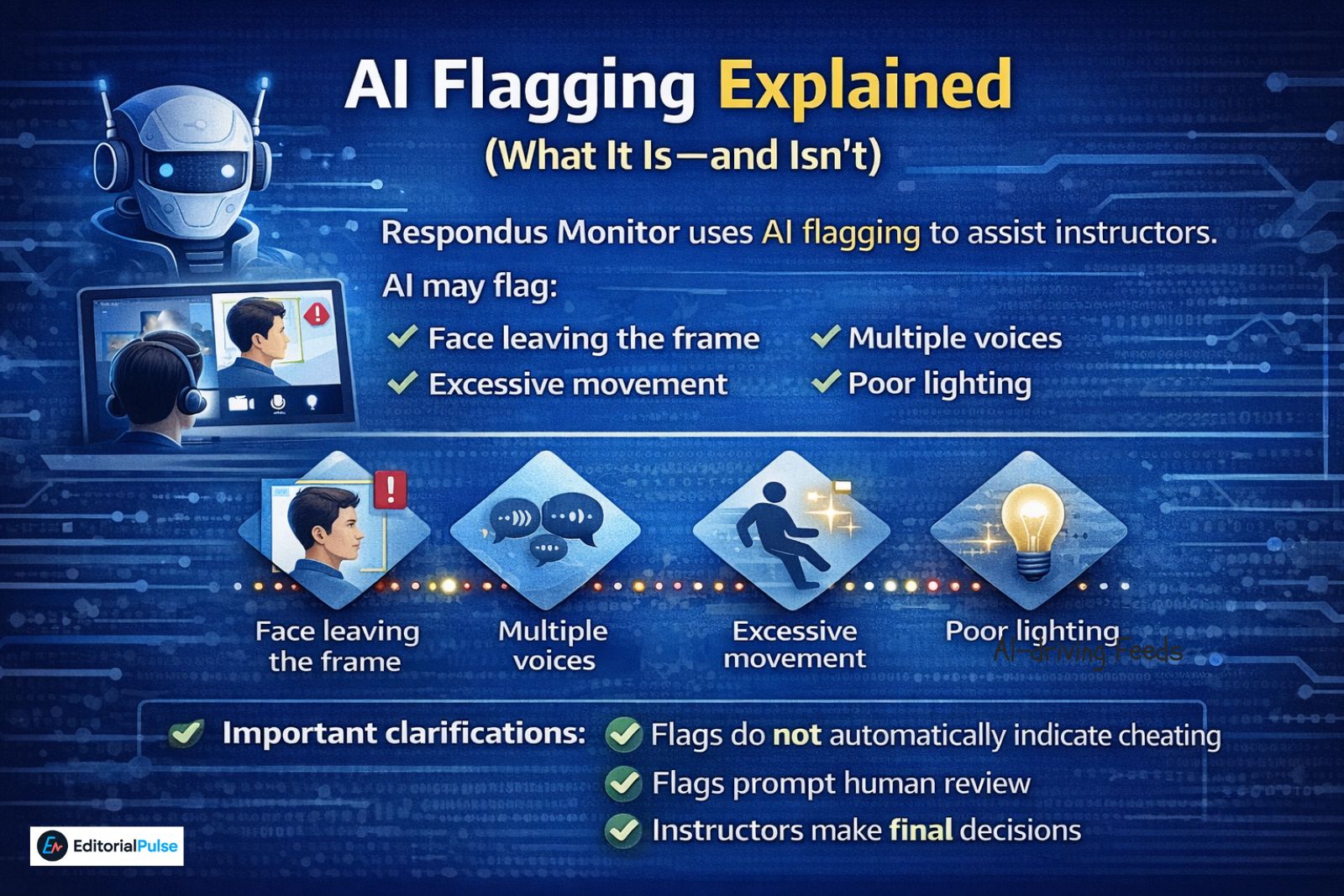
Respondus Monitor uses AI flagging to assist instructors.
AI may flag:
-
Face leaving the frame
-
Multiple voices
-
Excessive movement
-
Poor lighting
Important clarifications:
-
Flags do not automatically indicate cheating
-
Flags prompt human review
-
Instructors make final decisions
Live Chat Help (2025 Pro Tip)
Pro Tip:
If you get stuck during the setup sequence (for example, your camera won’t start), Respondus now offers 24/7 Live Chat support directly inside LockDown Browser.
If you see a chat bubble icon, you can get technical help without leaving the secure exam environment.
Checking Permissions on Your Device
Windows
-
Settings → Privacy & Security
-
Camera, Microphone, and (if applicable) Screen Recording
macOS
-
System Settings → Privacy & Security
-
Camera, Microphone, Screen Recording
No permission = no recording.
Quick Checklist: Is Respondus Recording You?
Recording is active if any of the following apply:
-
Respondus Monitor is explicitly required
-
Webcam or microphone setup appears
-
Screen Recording permission is requested
-
A monitoring indicator is visible
-
A Start Code is required (live proctoring)
If none apply, Respondus is not recording.
FAQs
Q. Does Respondus LockDown Browser record you?
No. Respondus LockDown Browser by itself does not record video, audio, or screen activity.
Recording only occurs if your exam also uses Respondus Monitor or instructor live proctoring.
Q. How can I tell if Respondus is recording my screen?
Respondus cannot record your screen silently.
Before screen recording begins:
-
On macOS, you must grant Screen Recording permission at the system level.
-
On Windows, LockDown Browser displays a screen recording notification during the startup sequence.
If you do not see these prompts, screen recording is not active.
Q. What is “Screen Only” mode in Respondus?
Screen Only mode records your desktop activity without using your webcam or microphone.
Even in this mode, Respondus must still request screen recording permission, so you will know it is enabled before the exam starts.
Q. What does a Start Code in LockDown Browser mean?
A Start Code usually indicates live proctoring.
The code is provided by an instructor or proctor—often during a Zoom, Teams, or Meet session—after they verify your identity. This confirms that a human proctor is actively supervising the exam.
Q. Does Respondus use AI to detect cheating?
Yes. Respondus uses AI to flag behaviors that may require instructor review, such as unusual movement or exam interruptions.
AI flags do not automatically mean cheating—they are review markers, not final judgments.
Q. Can Respondus record without telling you?
No. Respondus must disclose all recording permissions before an exam begins.
If recording is enabled, you will see explicit prompts or notices during setup. Silent or hidden recording is not supported.
Q. Is Respondus Monitor the same as live proctoring?
No.
-
Respondus Monitor uses automated recording and AI flagging.
-
Live proctoring involves a real person monitoring you in real time using third-party video tools.
Some exams use one method, some use both, and some record only the screen.
Q. Where can I get help if setup fails?
If you encounter issues during setup (for example, camera or permission errors), Respondus now provides 24/7 Live Chat help inside LockDown Browser.
If a chat icon appears, you can get technical assistance without leaving the secure exam environment.
Final Words
In 2025, Respondus recording behavior is determined by exam configuration, not assumptions. LockDown Browser secures your environment, Respondus Monitor handles automated recording, and live proctoring uses separate video tools.
Recording always requires visible setup steps, permissions, or codes. If you know what to look for, you can tell exactly what level of monitoring is in place before your exam begins and know how to know if Respondus LockDown Browser is recording you.
Related: Shadow Browser (2025): Proxy Safety Warnings & Shadow PC Guide
| Disclaimer: This article is for informational and educational purposes only. Respondus settings, proctoring methods, and exam requirements are determined by individual instructors and institutions and may vary by course, exam, or academic policy. Features and behaviors described here are based on publicly available Respondus documentation and common university IT practices as of 2025. Always follow your instructor’s official exam instructions and your institution’s policies for the most accurate and current requirements. |