Few errors frustrate ASP.NET Core developers more than the dreaded:
“HTTP Error 500.30 – ASP.NET Core app failed to start.”
It usually appears right after deployment—often on a production server, often under pressure, and almost always without a clear explanation. Instead of a helpful stack trace, IIS shows a generic message and leaves you guessing whether it’s a runtime mismatch, a configuration issue, a missing hosting bundle, or something deeper inside your startup logic.
If you landed here, you’re likely stuck between:
-
an app that works perfectly on your machine
-
but fails instantly when hosted in IIS or a Windows environment.
This guide gives you exactly what most articles don’t: a complete, practical, 2025-ready system for diagnosing and fixing 500.30 errors without guesswork. Let’s break down exactly how to resolve HTTP Error 500.30 – ASP.NET Core app failed to start—quickly and correctly.
What Is HTTP Error 500.30 in ASP.NET Core?
HTTP Error 500.30 means the ASP.NET Core worker process failed to start when IIS tried to launch your application using the ASP.NET Core Module (ANCM).
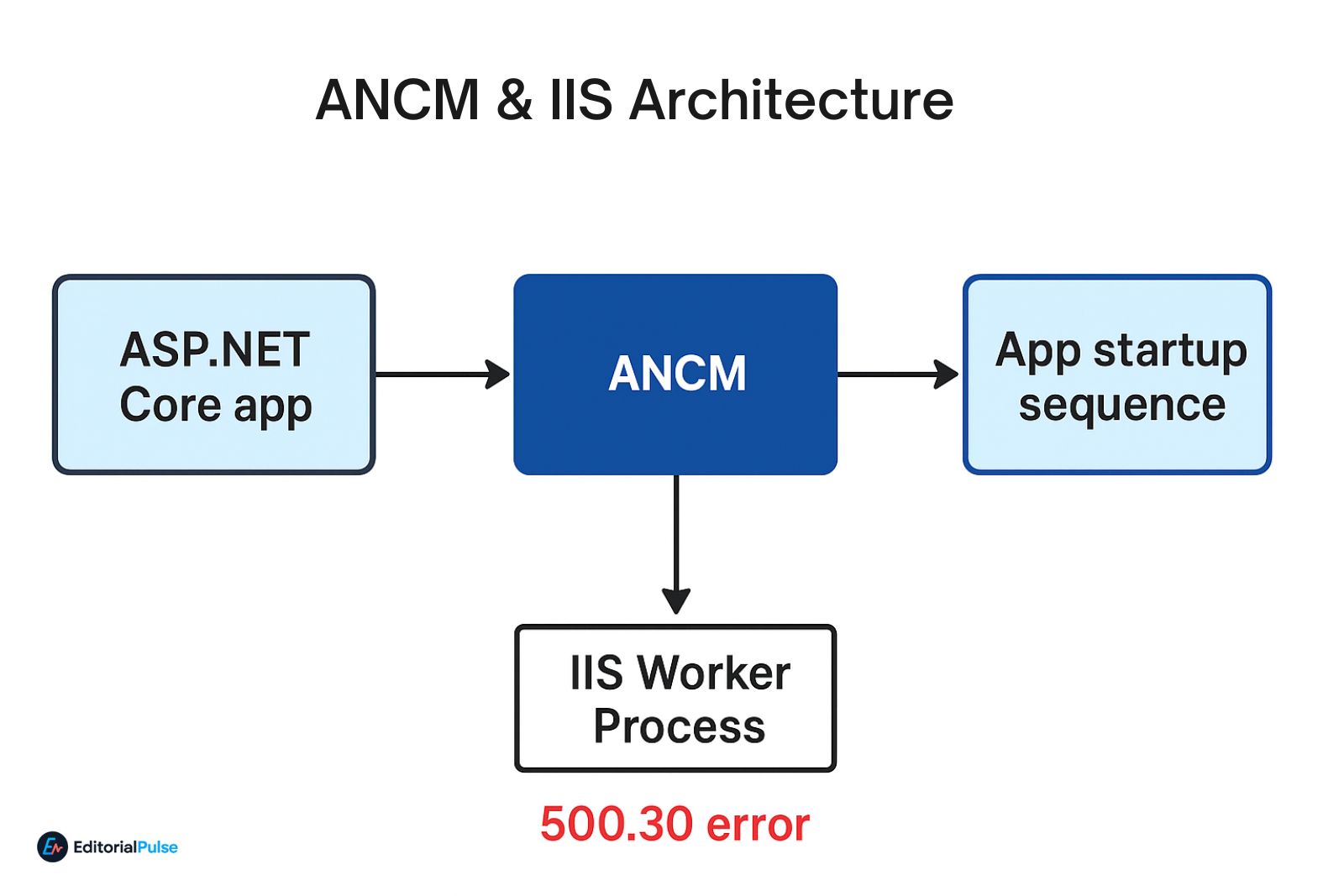
In simple terms:
IIS tried to run your ASP.NET Core application, but something inside the app crashed before it could initialize.
This error occurs before:
-
Program.csfully starts -
middleware is registered
-
the app creates logs (unless stdout logging is enabled)
Typical reasons include:
-
Missing .NET runtime
-
Hosting bundle not installed
-
Wrong environment variables
-
appsettings.json production issues
-
Code exceptions in Program.cs
-
Permissions or locked files
-
Database connection failures
-
Dependency injection misconfigurations
Symptoms of 500.30 – How This Error Behaves
Common signs:
-
The site loads, then immediately shows HTTP Error 500.30
-
The app works in Visual Studio but fails in IIS
-
No logs appear in the app’s log folder
-
The Windows Event Viewer shows ANCM errors
-
Worker process exits with exit code 0xC0000005, 0x80008096, or similar
If these sound familiar, you’re in the right place.
The 7-Step Diagnostic Ladder (2025 Framework)
This is a practical system used by senior .NET engineers to identify the root cause without guesswork.
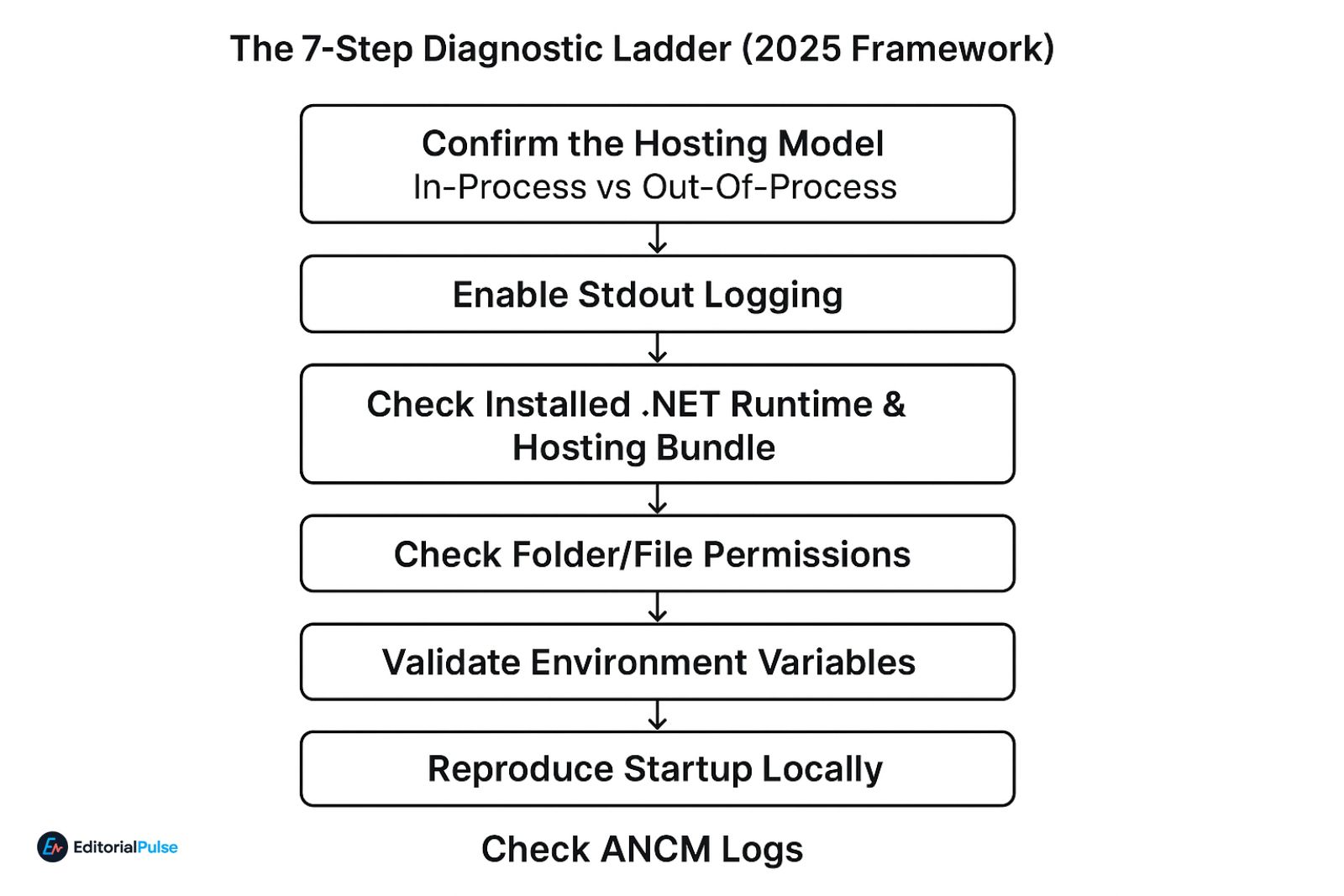
Step 1 — Confirm the Hosting Model (In-Process vs Out-Of-Process)
Check your web.config.
Example:
In-process is faster but more fragile—if your code crashes early, ANCM immediately stops the app.
Try switching temporarily to:
If the app starts → the issue lies inside your code or middleware initialization.
Step 2 — Enable Stdout Logging
This instantly reveals hidden errors.
In web.config:
Then reproduce the error → check logs folder.
Don’t forget to turn it off after debugging:
stdoutLogEnabled="false"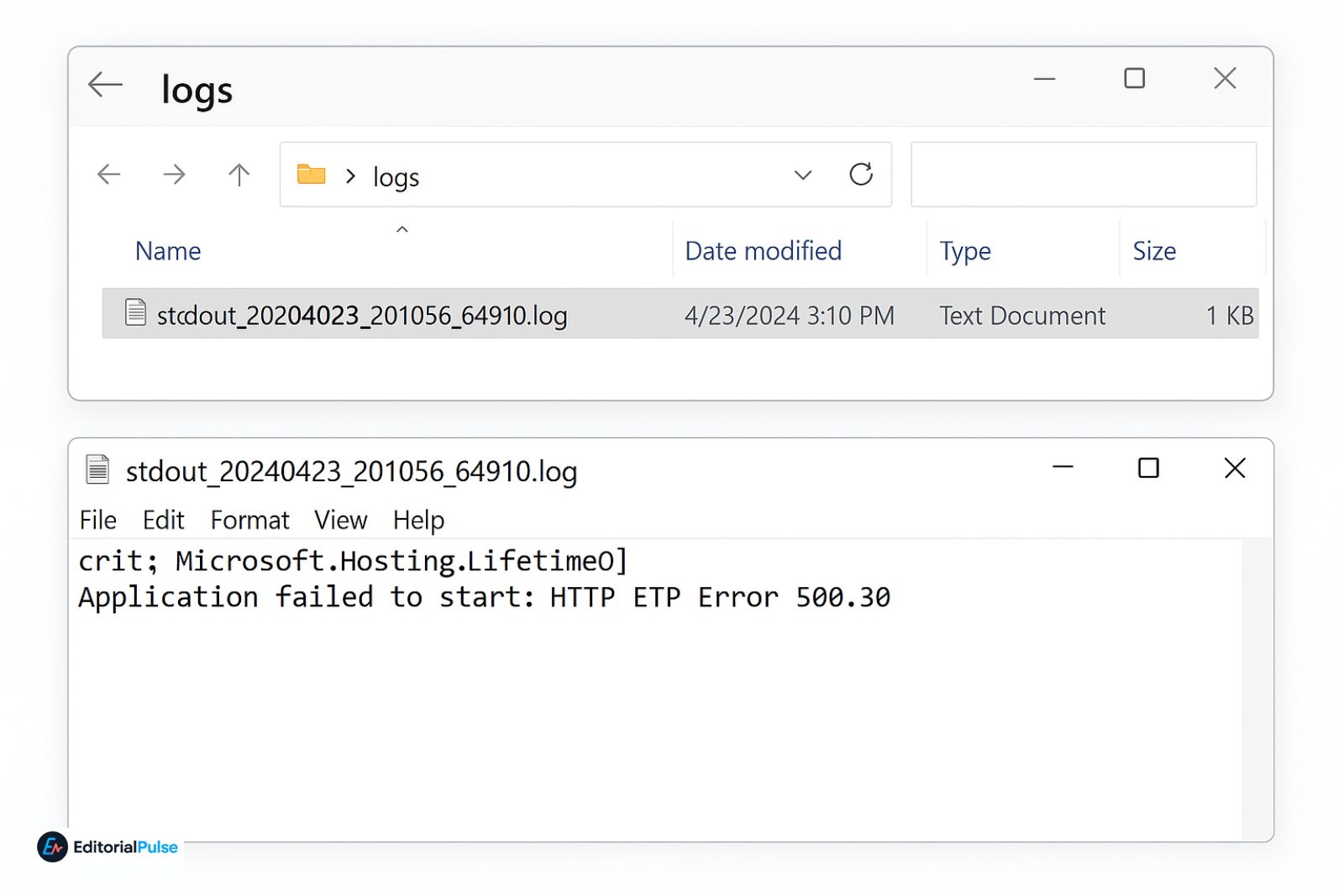
Step 3 — Check Installed .NET Runtime & Hosting Bundle
On the server, run:
If your app targets .NET 6/7/8/9 and the server is missing that runtime, IIS will fail instantly.
Most 500.30 reports stem from:
-
Incorrect Hosting Bundle
-
Missing ASP.NET Core Shared Framework
-
Mismatched versions after CI/CD pipeline builds
If the server has only Microsoft.NETCore.App but NOT Microsoft.AspNetCore.App, it cannot run your app.
Step 4 — Check Folder/File Permissions
Common issues:
-
IIS_IUSRS missing Modify permissions on wwwroot
-
Logs folder not writable
-
Appsettings or connection string file locked
-
Antivirus quarantining DLLs
Run:
Give:
-
IIS_IUSRS→ Modify -
ApplicationPoolIdentity→ Modify
Step 5 — Validate Environment Variables
Check:
Or look in IIS → App Pool → Configuration.
Common mistakes:
-
App expects Development settings
-
Production config missing required fields
-
Secrets not loaded because environment differs
Step 6 — Reproduce Startup Locally
Open a terminal inside the publish folder:
If it fails locally:
→ The problem is in your code, not IIS.
Common failures:
-
DB connection timeout
-
Missing config
-
Startup exceptions
-
DI container misconfigurations
-
builder.Services.Add...()throwing
Step 7 — Check ANCM Logs
Location:
Or Event Viewer → Windows Logs → Application.
Look for:
-
ANCM In-Process Start Failure
-
Worker process crashes
-
Access violations
Root Cause & Fixes
| Symptom | Likely Cause | Fix |
|---|---|---|
| App works locally but not on server | Missing runtime | Install the correct .NET Hosting Bundle |
| Only works with out-of-process | In-process crash | Fix code in Program.cs or middleware |
| No logs generated | Stdout disabled | Enable stdoutLogging |
| App fails instantly | Appsettings.Production.json missing | Add and redeploy config file |
| Works on Dev but not Prod | Environment mismatch | Set ASPNETCORE_ENVIRONMENT correctly |
| Random startup failure | Permissions issue | Grant Modify to IIS_IUSRS |
| Errors in Event Viewer | ANCM crash | Check Hosting Bundle + runtime |
| DB timeout during startup | Database unreachable | Fix connection string / firewall |
Common Mistakes Developers Overlook
These cause 40–50% of all 500.30 incidents:
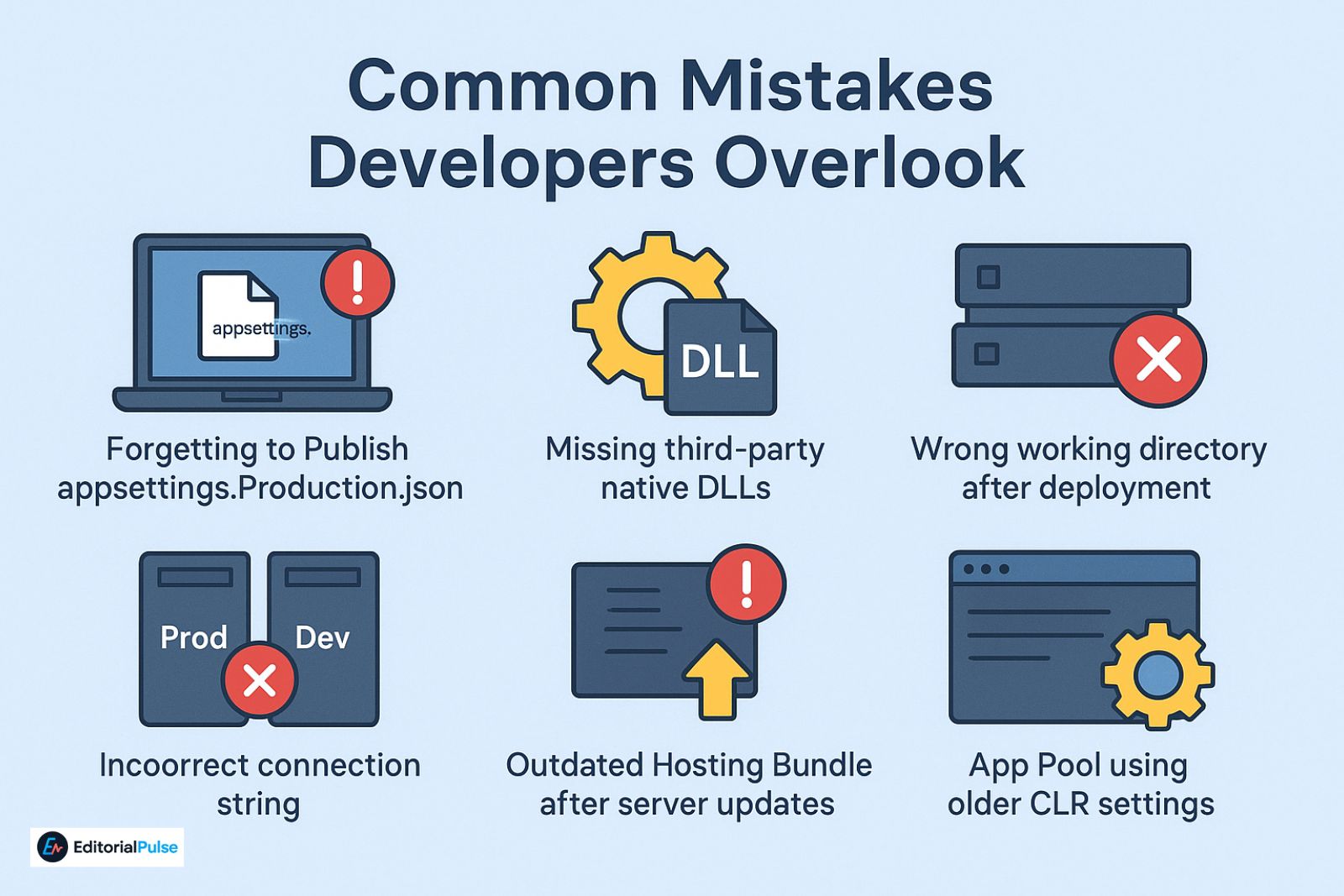
1. Forgetting to Publish appsettings.Production.json
Result: app boots without required configuration → crash.
2. Missing third-party native DLLs
Example: image processing, MySQL, or PDF libraries.
3. Wrong working directory after deployment
Relative paths break in IIS.
4. Incorrect connection string (Prod vs Dev)
Local server works → production SQL server unreachable.
5. Outdated Hosting Bundle after server updates
Especially after .NET 8 upgrades.
6. App Pool using older CLR settings
Always use:
No Managed Code → Framework-dependent apps
Real-World Example (Mini Case Study)
Scenario
A .NET 8 MVC app worked perfectly on a developer’s machine but failed on Windows Server 2019 with:
HTTP Error 500.30 – ASP.NET Core app failed to start
Diagnosis
-
The server had
.NET 7 Hosting Bundleonly. -
.NET 8runtime was missing → ANCM couldn’t start the app.
Fix
Installed:
ASP.NET Core Hosting Bundle 8.x.x
App launched instantly.
Lesson
95% of “works on my machine but not on server” cases are runtime-related.
Also Check: Proxypy Web Proxy (Proxy.py) 2025 Guide: Install, MITM & Safety
Complete Troubleshooting Checklist
Server
-
Install correct .NET Hosting Bundle
-
Verify runtime version with
dotnet --list-runtimes -
Ensure IIS_IUSRS and AppPool have Modify permissions
-
Check Event Viewer ANCM logs
-
Disable antivirus quarantining DLLs
-
Restart IIS (
iisreset)
App
-
Confirm hostingModel in web.config
-
Enable stdout logging temporarily
-
Ensure appsettings.Production.json is deployed
-
Validate connection strings
-
Verify environment variable
-
Reproduce using
dotnet app.dllinside publish folder
How to Prevent 500.30 Errors in Future Deployments (2025)
1. Bundle your runtime in deployment (self-contained apps)
Removes dependency on server-installed runtimes.
2. Use CI/CD health checks
Automated smoke tests catch startup errors before deployment.
3. Add startup try/catch with structured logging
This captures early exceptions.
4. Use secrets manager
Avoid missing environment variables.
5. Pin .NET minor versions
Prevents sudden breaking changes due to runtime roll-forward behavior.
FAQs
Q1. How do I fix HTTP Error 500.30 in ASP.NET Core?
Enable stdout logging, check Event Viewer, verify the correct .NET Hosting Bundle, confirm appsettings.Production.json is deployed, and reproduce the app with dotnet app.dll to identify the exact startup exception.
Q2. What causes “ASP.NET Core app failed to start”?
The most common causes include a missing .NET runtime, runtime mismatch, startup exceptions, incorrect appsettings, missing environment variables, or IIS permissions issues.
Q3. What is ANCM In-Process Start Failure?
It means the ASP.NET Core Module (ANCM) attempted to run the app inside the IIS worker process, but the app crashed before initialization. Switching to out-of-process can help diagnose startup code issues.
Q4. Why does my ASP.NET Core app work locally but not on IIS?
Usually because IIS lacks the required Hosting Bundle or runtime version. Other causes include missing production configuration files or permissions.
Q5. How do I check the real error behind 500.30?
Enable stdoutLogEnabled="true" in web.config, restart the app, and read the generated log file for the exact exception.
Q6. Does .NET 8 or .NET 9 change how 500.30 works?
The error code is the same, but .NET 8/9 rely more heavily on exact runtime versions. Hosting Bundle mismatches are now the most common cause.
Q7. What is the difference between 500.30 and 500.31?
-
500.30 → app failed to start
-
500.31 → ANCM failed to find native dependencies
Conclusion
HTTP Error 500.30 – ASP.NET Core app failed to start almost always comes down to runtime issues, startup exceptions, configuration problems, or permissions. The error message itself is vague, but by following the 7-step diagnostic ladder, enabling logging, and validating runtimes, you can identify and fix the issue quickly.
Whether you’re troubleshooting a production outage or preparing for a future deployment, the checklist and framework in this guide help you avoid guesswork and solve the error with confidence.
Related: FCKeditor inurl:/editor/filemanager/browser/: Secure Your Site Now (2025)
| Disclaimer: This guide provides general troubleshooting information for HTTP Error 500.30 in ASP.NET Core. Server setups vary, so results may differ. Always test changes in a safe environment and back up your configuration before making an update. |