| Quick Verdict (TL;DR)
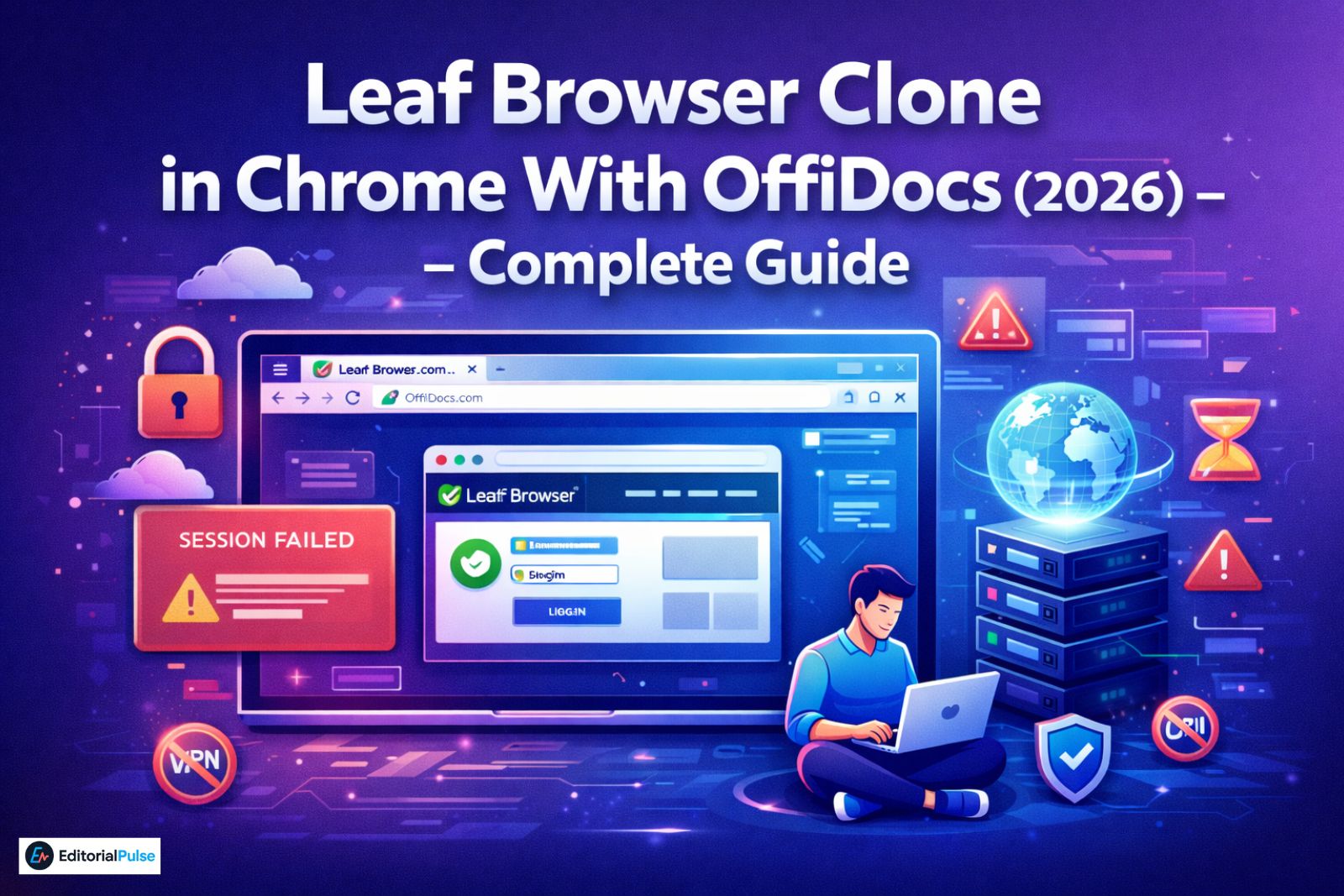
The Leaf Browser clone in Chrome with OffiDocs is not a real browser and not an official Leaf Browser clone. It is a cloud‑hosted Chromium session streamed into a Chrome tab. In 2026, it works best as a temporary unblocking tool in schools or offices where installs and VPNs are restricted. The tradeoffs are real: noticeable input lag (180–320ms), inconsistent session persistence, limited privacy, and zero offline use. Use it for quick access. Avoid it for daily work or sensitive accounts. |
There’s nothing more frustrating than needing one webpage—right now—and being stuck behind a school filter or a locked‑down work Chromebook. You click a link, Chrome spins, and nothing loads. That’s usually the moment people search for “Leaf Browser clone in Chrome with OffiDocs.”
I tested the OffiDocs extension hands‑on to answer a simple question: Does this actually replace Leaf Browser—or is it just a workaround with strings attached? This guide walks through how it works, why it feels slow, when it helps, when it fails, and what to use instead in 2026.
What Is the Leaf Browser Clone by OffiDocs?
The OffiDocs Leaf Browser clone is a Chrome extension that launches a remote, cloud‑hosted Chromium environment designed to look like Leaf Browser.
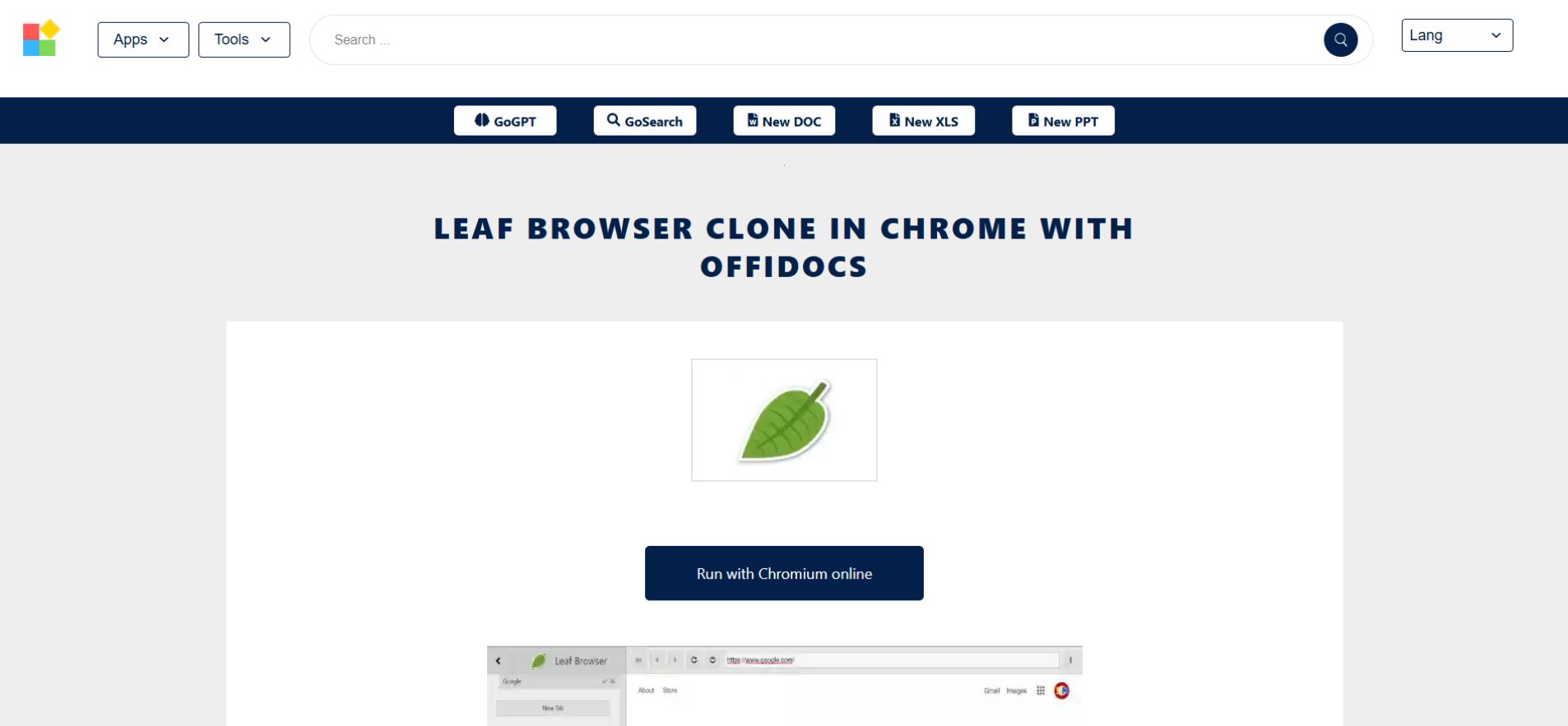
The Crucial Distinction
- ❌ Not the original Leaf Browser (Alpha)
- ❌ Not installed locally on your device
- ✅ A browser‑in‑browser streamed from OffiDocs servers
The Mental Model (Why Expectations Break)
Using this extension is like driving a car in another city using a remote control while watching through a webcam. You send input locally, but the computer doing the work lives somewhere else. Lag, disconnects, and resets are built into that reality.
How It Works in 2026 (Under the Hood)
OffiDocs doesn’t “run” a browser inside Chrome. It streams one.
Step‑by‑step:
- Launch: You click the OffiDocs extension icon
- Handshake: A new tab connects to OffiDocs’ VNC‑style streaming servers
- Execution: A cloud container boots a Chromium LTS build (often v12x for stability)
- Display: The browser’s pixels are streamed back to your Chrome tab
Key technologies involved:
- Browser virtualization
- VNC‑based streaming
- Chromium sandboxing
This architecture explains every major limitation users encounter.
Why Schools & Offices Use OffiDocs for Unblocking
In 2026, most managed networks aggressively block:
- Standalone browser installers (.exe, .dmg)
- VPN clients
- Proxy applications
Chrome extensions, however, are often still allowed.
The Unblocking Loophole
Because all browsing happens on OffiDocs’ servers, local filters usually only see traffic going to offidocs.com—not the final destination website.
The Reality Check
- If offidocs.com is blocked, the tool fails instantly
- If remote‑desktop protocols are restricted, sessions won’t start
- Session limits and peak‑hour overloads are common
This makes OffiDocs a situational workaround, not a guaranteed bypass.
Leaf Browser vs OffiDocs Clone (Expectation vs Reality)
| Expectation | Reality |
|---|---|
| Feels like a real browser | Feels like screen streaming |
| Native Chrome speed | Server‑dependent latency |
| Persistent sessions | Auto‑reset after idle |
| Private browsing | Third‑party hosted |
| Full control | Severely limited |
Bottom line: OffiDocs imitates access, not experience.
Performance Reality: The 30‑Second Latency Test
I ran a side‑by‑side test comparing local Chrome with the OffiDocs clone. The difference is immediate.
| Action | Local Chrome | OffiDocs Clone (Observed) |
| Typing response | Instant (~2ms) | 180–320ms lag |
| Scroll smoothness | ~120 FPS | ~15–20 FPS, stutter |
| Video playback | 4K smooth | Frame drops, audio desync |
| Session persistence | Always retained | Wiped after ~10 min idle |
This is why the clone works for short tasks but becomes frustrating quickly.
Why the Clone “Isn’t Working” (Common Failures)
If you’re staring at a blank screen or a “Session Failed” message, it’s rarely your device.
Typical failure causes:
- Server overload: Free containers fail during peak school hours
- Session timeouts: Idle limits reset environments
- Chrome updates: Extension APIs break after major version jumps
Pro Tip
If a session freezes, clear site data for offidocs.com in Chrome settings. This often forces the remote container to restart.
Safety Breakdown: Security vs Privacy
- Device security: High. The extension is sandboxed and cannot access local files
- Data privacy: Low. All browsing occurs on third‑party servers
Rule of thumb: Treat this like a public computer. Do not log into primary Google, banking, or long‑term personal accounts.
Who Should—and Shouldn’t—Use It
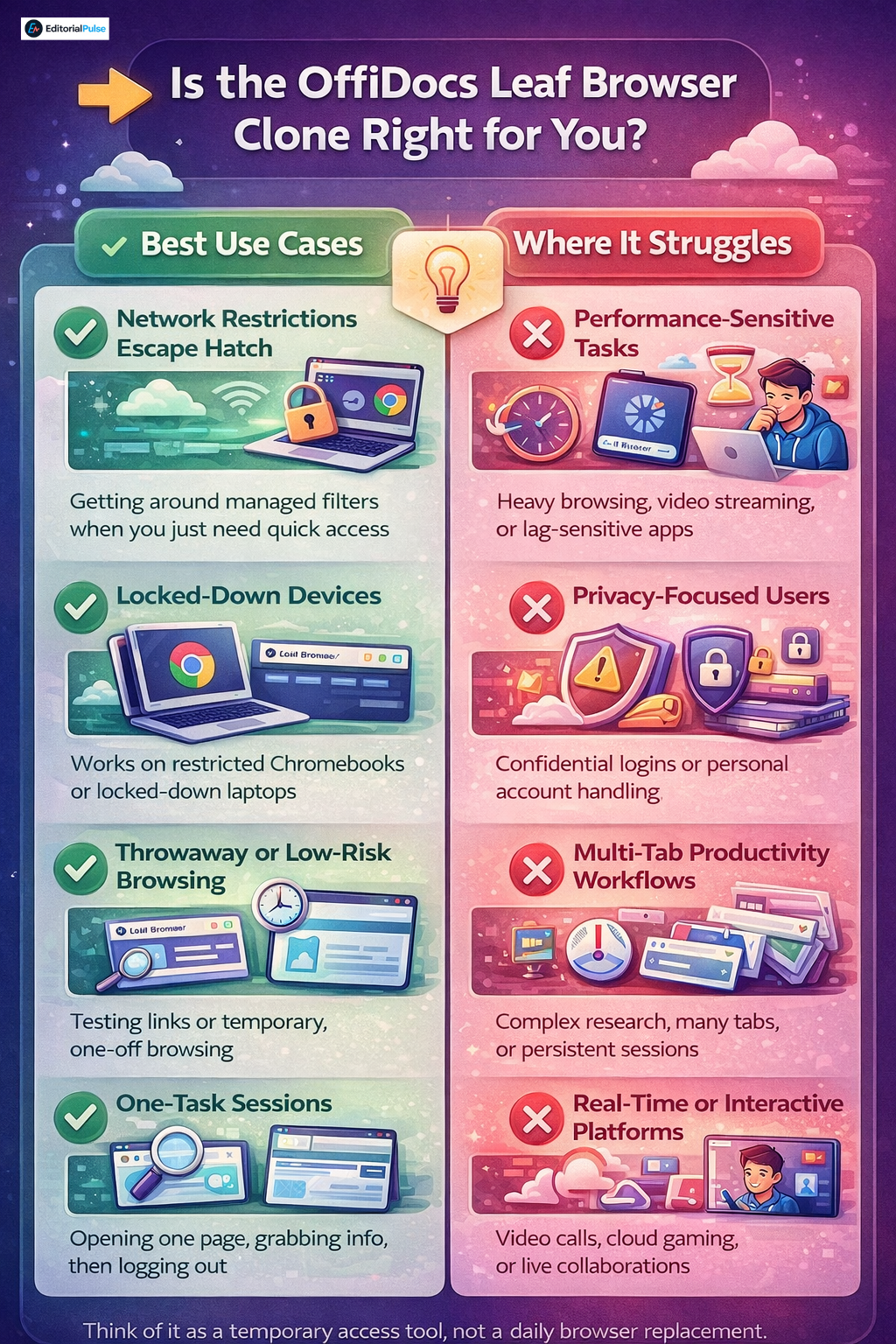
Use It If You:
- Need temporary unblocking
- Are on a restricted Chromebook
- Want disposable browsing
Avoid It If You:
- Need speed or stability
- Care about privacy
- Plan to work across multiple tabs
Better Alternatives in 2026
If OffiDocs feels limiting, these options make more sense:
- Horse Browser: A spiritual successor to Leaf with improved tab hierarchy
- Brave (Portable): Excellent privacy‑to‑speed ratio if USB browsers are allowed
- Vivaldi: Ideal for users who loved Leaf’s sidebar and workflow control
Advanced cloud browsers also exist, but they’re often paid and enterprise‑focused.
FAQ
Q. Can I use the Leaf Browser clone in Chrome offline?
No. The Leaf Browser clone by OffiDocs cannot be used offline. It runs entirely as a cloud-hosted Chromium session, which means a continuous internet connection is required for the browser to load, display pages, and respond to input.
Q. Why does the OffiDocs Leaf Browser clone look like an older version of Chrome?
The OffiDocs Leaf Browser clone typically runs on a long-term-support (LTS) Chromium build rather than the latest Chrome version. Hosted browsers use older, stable Chromium releases to reduce server costs, avoid breaking changes, and maintain session stability, even though this makes the interface look outdated.
Q. Is there an official Leaf Browser extension for Chrome?
No. There is no official Leaf Browser extension for Chrome. The original Leaf Browser was distributed as a standalone app format that Google later discontinued. Any Leaf Browser “clone” available today—including the OffiDocs version—is a third-party implementation, not an official Leaf Browser product.
Q Does the OffiDocs Leaf Browser clone work the same as the original Leaf Browser?
No. The OffiDocs clone streams a remote browser session, while the original Leaf Browser ran locally on the user’s device. This difference explains the lag, session resets, and limited control seen in cloud-based clones.
Q. Is the Leaf Browser clone safe for logging into accounts?
It’s generally not recommended. While the extension is sandboxed and safe for your device, all browsing occurs on third-party servers, making it unsuitable for sensitive logins such as banking, email, or primary Google accounts.
Q. Why does the Leaf Browser clone stop working sometimes?
The clone may fail due to OffiDocs server overload, session limits, or Chrome extension API changes. Because the browser runs remotely, users have little control when sessions fail to start or disconnect unexpectedly.
Final Take
The OffiDocs Leaf Browser clone is a break‑glass‑in‑case‑of‑emergency tool. It’s genuinely useful when you just need one page to load, but the lag and resets make it feel like browsing the web through a straw.
Helpful in the moment. Frustrating over time. And very easy to misunderstand if you expect a real browser.
Related: Tavl Web 2025: Full Login, Features & Setup Guide
| Disclaimer: The information in this article is provided for educational and informational purposes only. The OffiDocs Leaf Browser clone is a third-party tool, and the author is not affiliated with the original Leaf Browser or OffiDocs. While every effort was made to test and verify the features described, results may vary depending on device, network, or Chrome version. Readers should exercise caution when using cloud-hosted browsers and avoid logging into sensitive accounts through third-party services. The author assumes no responsibility for data loss, privacy breaches, or technical issues resulting from the use of these tools. |