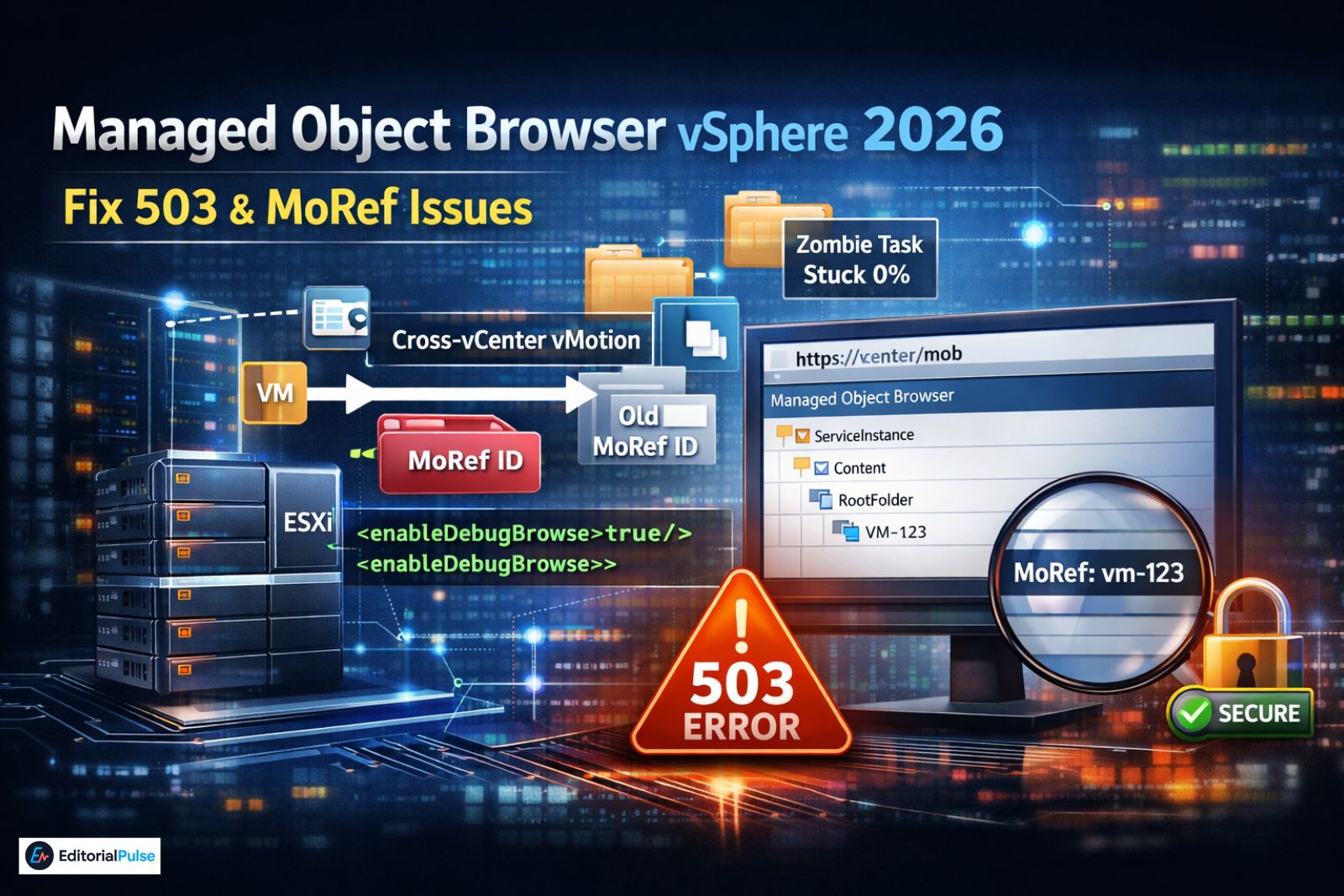
There’s a moment every experienced VMware admin recognizes: the GUI looks fine, automation says everything is fine, yet something clearly isn’t. A task won’t cancel. Terraform fails against a VM that “exists.” An automation database insists a MoRef is valid—but vSphere disagrees.
That’s when you open the Managed Object Browser vSphere 503 error tool.
Inside VMware vSphere, the managed object browser (MOB) exposes the raw object model that powers everything else. In 2026, it’s no longer a daily tool. It’s a specialist instrument—used primarily for:
- MoRef validation for Terraform/Ansible
- Zombie task clearing
- Certificate mismatch verification
- Hidden property inspection (instanceUuid, etc.)
This guide explains MoRef persistence, the 503 trap, vpxd.cfg edits, and the “Enable → Use → Disable” security model.
What Is the Managed Object Browser in vSphere?
The managed object browser vSphere interface is a built-in web endpoint that allows you to:
- Browse the vSphere API object tree
- Inspect object properties in real time
- Invoke API methods manually
- Retrieve Managed Object References (MoRef IDs)
Access URL:
https://<vcenter-or-esxi>/mob
Every object in vSphere—VM, host, datastore, task—is represented internally as a managed object. MOB lets you see that structure directly.
Think of it as browsing raw infrastructure DNA.
The 2026 Shift: MOB as a Specialist Tool
In earlier years, admins used MOB for general API learning. In 2026, its primary uses are narrower—but more critical.
The Top 3 Modern Use Cases
- MoRef validation for automation
- Clearing zombie tasks
- Verifying hidden properties not exposed in GUI
If you’re staring at the MOB for more than 20 minutes, you’re probably procrastinating on a complex PowerCLI script. Use it for the quick validation—then get back to automation.
Managed Object Reference (MoRef) Persistence — The Overlooked Risk
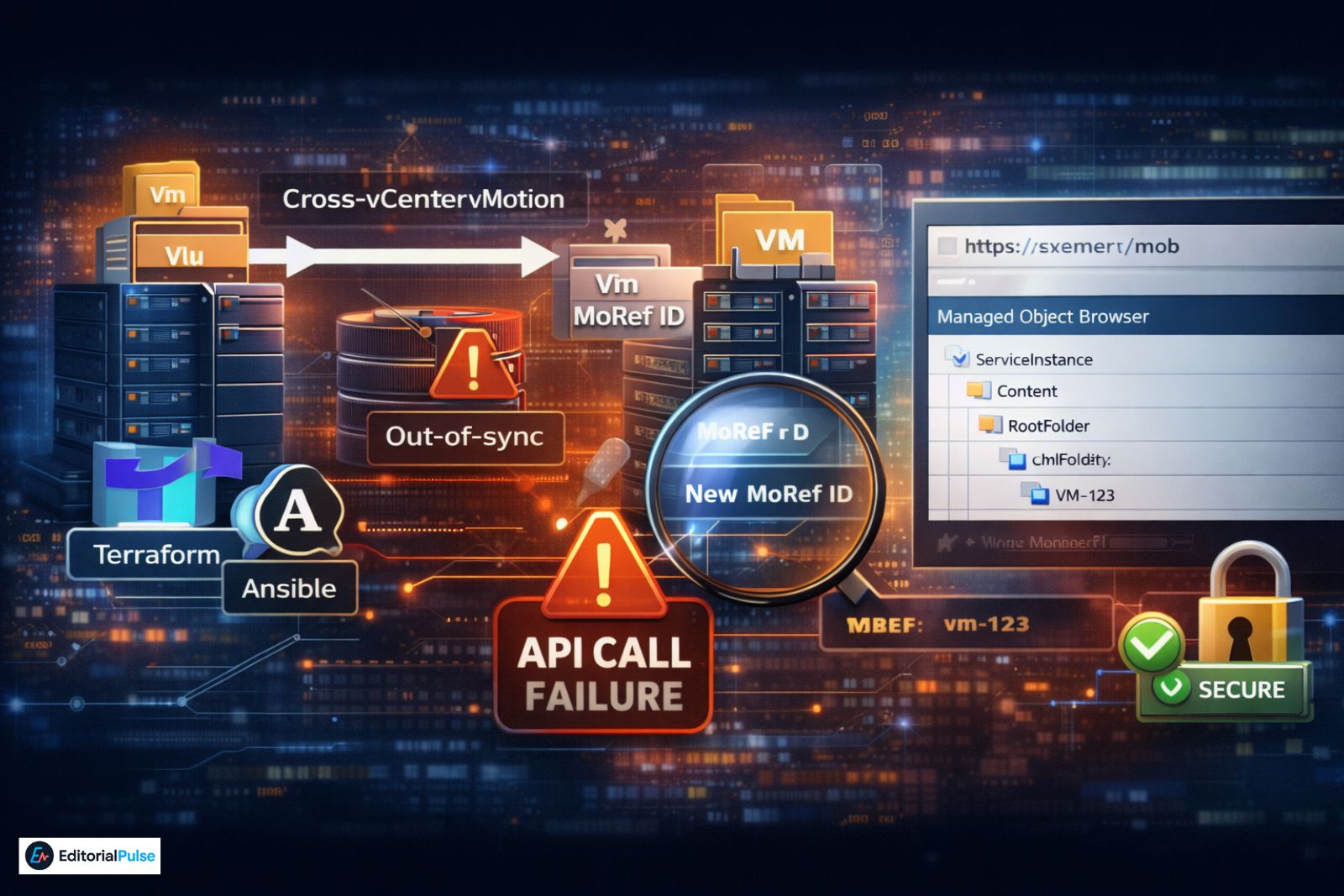
MoRef IDs Are NOT Globally Persistent
When a VM is migrated across vCenters using Cross-vCenter vMotion:
- The VM keeps its identity in business terms.
- But its MoRef ID changes in the destination vCenter.
If your automation platform (Terraform, Ansible, custom DB) stores MoRefs:
- Your external database can go out of sync.
- API calls begin failing.
- Infrastructure appears “broken” even though it isn’t.
How Admins Use MOB to Detect This
Open:
https://<destination-vcenter>/mob
Navigate to:
ServiceInstance → Content → RootFolder → childEntity → vmFolder
Locate the VM.
Compare its MoRef with the value stored in your automation system.
If they differ, your automation is referencing an orphaned ID.
This is the #1 2026 reason admins open MOB.
The 503 Service Unavailable Trap (vSphere 8.x & 9.x)
Many guides say: “Just go to the /mob URL.”
That’s outdated advice.
In modern vSphere 8.x and 9.x builds:
- You often don’t get a “disabled” page.
- You get a 503 Service Unavailable error.
Admins then assume:
- vCenter is down
- vpxd crashed
- PSC is failing
In reality, MOB is disabled.
Before troubleshooting services, verify whether MOB is enabled.
How to Enable vCenter Managed Object Browser (vpxd.cfg Method)
On VMware vCenter Server, enabling MOB often requires manual configuration.
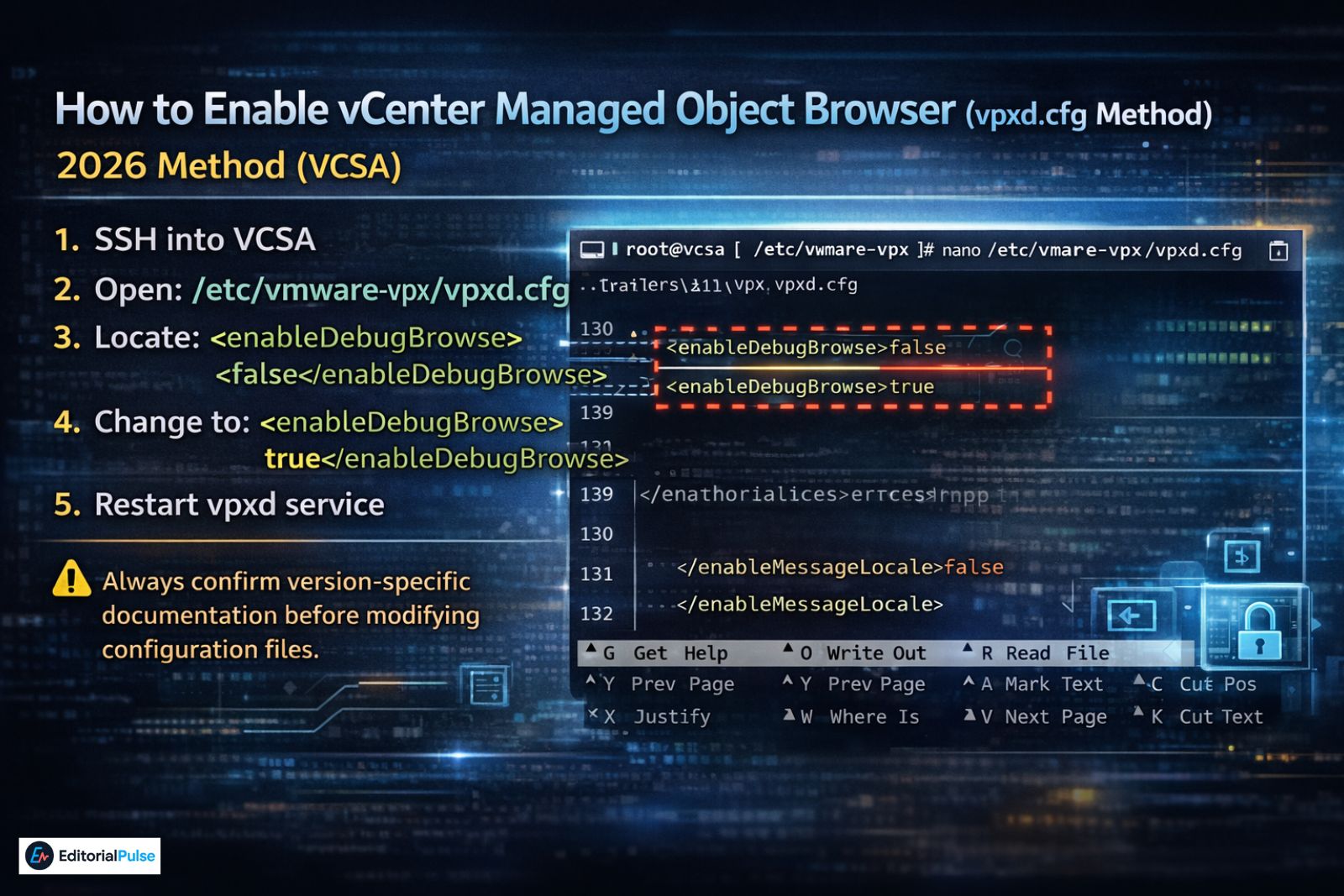
2026 Method (VCSA)
- SSH into VCSA
- Open:
/etc/vmware-vpx/vpxd.cfg - Locate:
<enableDebugBrowse>false</enableDebugBrowse> - Change to:
<enableDebugBrowse>true</enableDebugBrowse> - Restart vpxd service.
⚠ Always confirm version-specific documentation before modifying configuration files.
The Object Hierarchy (How to Navigate Correctly)
If you’re searching randomly, you’ll waste time.
The structure always follows this pattern:
ServiceInstance
→ Content
→ RootFolder
→ childEntity (Datacenter)
→ vmFolder
→ childEntity (Your VM)
For hosts:
ServiceInstance → Content → RootFolder → hostFolder
Understanding this hierarchy saves 80% of navigation time.
The #1 Power Move: Clearing Zombie Tasks
Scenario:
- Task stuck at 0%
- “Cancel” button greyed out
- GUI useless
How to Fix with MOB
- Navigate to:
TaskManager - Find the task MoRef
- Open the task object
- Invoke:
CancelTask
This is the advanced admin “power move.”
Use carefully—but it works.
Certificate Verification (2026 Automation Reality)
After automated certificate renewals:
- ESXi hosts sometimes show mismatched certificates.
- vCenter inventory looks fine.
- API calls fail.
Using MOB:
- Navigate to
HostSystemobject - Inspect:
signedCertificate - Compare against vCenter trust store
This confirms whether the mismatch is real or cached.
Hidden Properties the GUI Won’t Show
The vSphere Client hides certain properties.
Example:
config.instanceUuid
If you’re running:
- High-availability SQL clusters
- Licensing systems tied to UUID
- Automation that maps UUID to CMDB
You must verify this value via MOB.
Do not rely solely on GUI abstraction.
Managed Object Browser vs MIB Browser
| Feature | Managed Object Browser | MIB Browser |
|---|---|---|
| Platform | VMware vSphere | Network devices |
| Protocol | vSphere API | SNMP |
| Purpose | Inspect infrastructure objects | Query SNMP MIB data |
| Audience | Virtualization admins | Network engineers |
Browser-Based Access & Modern Alternatives
The MOB interface is accessed through standard web browsers. For organizations with strict browser policies or those exploring browser alternatives for admin tasks, understanding your options matters.
While Chrome and Firefox remain the standard choices for accessing MOB, some admins explore specialized browser configurations. If you’re working with unblocked browsers in restricted environments or need alternatives for accessing admin interfaces, the MOB endpoint typically works across any modern browser that supports HTTPS and JavaScript.
For enhanced privacy during administrative sessions, consider reviewing web and app activity settings to ensure your browser isn’t logging sensitive infrastructure access patterns.
Security & CVE Awareness (2026 Standard)
The Golden Rule:
Enable → Use → Disable
In early 2026, minor vulnerabilities related to session handling within the MOB interface were patched in security rollups.
Before enabling MOB on shared management networks:
- Ensure you are patched to at least the March 2026 security rollup.
- Restrict access via firewall.
- Use least-privilege accounts.
- Audit session activity.
- Never expose MOB externally.
For organizations implementing secure remote access, consider using dedicated secure access solutions like Prisma Access Browser for administrative tasks rather than exposing MOB directly to the internet.
Common Mistakes
- Leaving MOB permanently enabled
- Using root for inspection tasks
- Confusing MoRef with instanceUuid
- Assuming MoRefs persist across vCenters
- Panicking over 503 errors
Most issues come from misunderstanding architecture—not complexity.
Quick Admin Cheat Sheet
Access
https://<server>/mob
Primary 2026 Use
- Validate MoRef after cross-vCenter migration
- Cancel zombie tasks
- Inspect hidden properties
Troubleshooting 503
- Verify MOB enabled
- Check vpxd.cfg
- Restart service if necessary
Security Model
Enable → Use → Disable
FAQs
Q. What is the Managed Object Browser in vSphere?
The Managed Object Browser (MOB) in VMware vSphere is a built-in web interface that allows administrators to inspect and interact directly with the vSphere API object model. It exposes managed objects, properties, methods, and Managed Object References (MoRef IDs) for troubleshooting and automation validation.
Q. Why does the Managed Object Browser return a 503 error?
In vSphere 8.x and 9.x, the Managed Object Browser often returns a 503 Service Unavailable error when MOB is disabled. This does not mean vCenter services are down—it usually indicates that debug browsing is turned off in the configuration settings.
Q. Do MoRef IDs change after cross-vCenter vMotion?
Yes. When a virtual machine is migrated between different vCenter instances using Cross-vCenter vMotion, its Managed Object Reference (MoRef) changes. Automation systems that store the old MoRef may become out of sync and require validation through the Managed Object Browser.
Q. How do I cancel a stuck task in vCenter using the Managed Object Browser?
To cancel a stuck vCenter task using MOB, navigate to the TaskManager object, locate the specific task’s MoRef, open the task object, and invoke the CancelTask method. This is commonly used when the GUI “Cancel” button is unavailable.
Q. Is it safe to enable the Managed Object Browser in production?
Enabling the Managed Object Browser can be safe in controlled environments with proper patching, firewall restrictions, and least-privilege access. However, it should not remain permanently enabled in production due to security hardening best practices. Always follow the “Enable → Use → Disable” model.
Q. What is the difference between Managed Object Browser and MIB Browser?
The Managed Object Browser is used in VMware vSphere to inspect API objects, while a MIB Browser is used to query SNMP data from network devices. They serve different purposes and operate on different protocols.
Q. How do I access the Managed Object Browser in vCenter?
You can access the Managed Object Browser by navigating to:
https://<vcenter-server>/mob
Log in with an account that has sufficient privileges to view and execute API methods.
Conclusion
In 2026, the managed object browser is no longer a daily admin tool. It’s a precision diagnostic instrument.
Use it to:
- Validate MoRef persistence after cross-vCenter moves
- Clear zombie tasks
- Verify certificates
- Inspect hidden configuration values
Respect its power. Keep it secured. And remember: if you’re living in the MOB, your automation probably needs improvement.
Advanced admins don’t avoid it. They just use it intentionally.
Visit: EditorialPulse
| Disclaimer: The information provided in this article is intended for educational and informational purposes only. Using the Managed Object Browser (MOB) in VMware vSphere can directly modify your infrastructure and may cause unintended changes or service disruptions if misused. Always perform actions in a controlled, non-production environment when possible, and ensure you have proper backups and permissions. The author and website are not responsible for any loss, damage, or operational impact resulting from the use of the techniques described. Use these instructions at your own risk. |