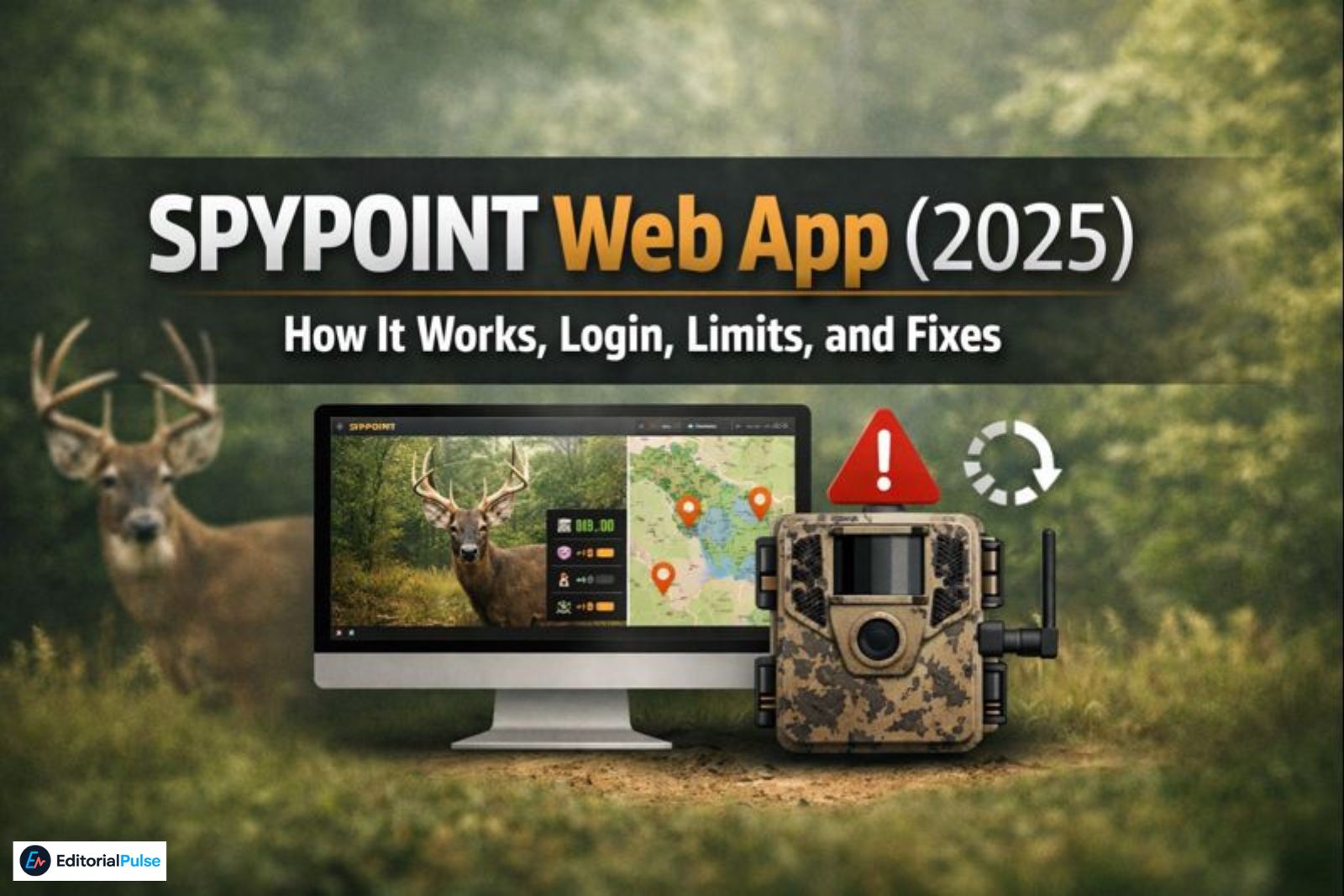
If you’ve searched for the SPYPOINT web app, you’re probably frustrated.
Maybe you’re looking for a download button that doesn’t exist. Maybe your camera isn’t responding to setting changes. Or maybe you’re managing several trail cameras and need a clearer, bigger-picture view than your phone provides.
That confusion is common—and understandable.
As of 2025, SPYPOINT does provide a robust browser-based web portal, but it behaves very differently from the mobile app. Most user problems come from misunderstanding how the web app communicates with cameras, when changes take effect, and what features are desktop-only versus mobile-only.
This guide explains:
-
What the SPYPOINT web app really is (and isn’t)
-
How login and camera management work on desktop
-
The “pull vs. push” delay most guides never explain
-
Firmware, SD card, and AI tagging pitfalls
-
Insiders Club features that work best on the web
-
Security and 2FA gotchas in real-world use
If you want a clear, technical, field-tested explanation of SPYPOINT’s web experience in 2025, this is it.
SPYPOINT Web App (2025):
A browser-based dashboard for viewing photos, managing cameras, and handling data plans—no download required. Best for desktop oversight, not instant alerts.
What Is the SPYPOINT Web App?
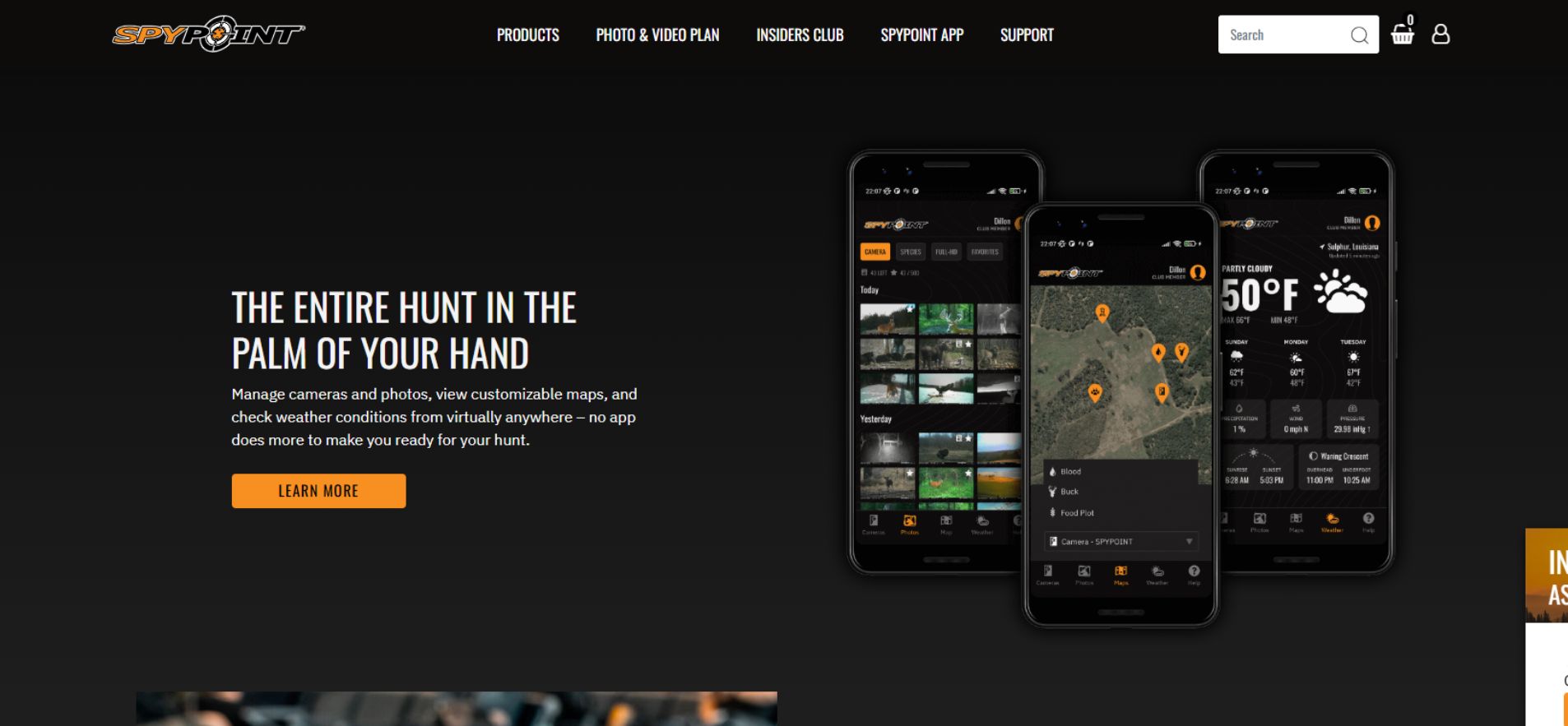
The SPYPOINT web app is a browser-based management portal, accessed at:
It allows you to:
-
View transmitted photos
-
Check battery voltage and signal strength
-
Change camera settings
-
Manage data plans
-
Share camera access
-
Manage Insiders Club features
What It Is Not
Despite third-party listings, the SPYPOINT web app is:
-
❌ Not a Windows or macOS installer
-
❌ Not a Chrome extension
-
❌ Not something you download
Sites advertising “SPYPOINT for PC” typically bundle Android emulators, which add security risk and offer no official support.
SPYPOINT Web App vs Mobile App (2025 Reality Check)
The web app and mobile app are complements, not replacements.
Core Feature Comparison
| Feature | Web App (Browser) | Mobile App (iOS / Android) |
|---|---|---|
| View photos | ✅ Yes | ✅ Yes |
| Camera settings | ✅ Yes | ✅ Yes |
| Push notifications | ❌ No | ✅ Yes |
| Firmware updates | Manual (SD card) | OTA (model-dependent) |
| Offline access | ❌ No | ✅ Yes |
| Mapping | Static markers | GPS live tracking + wind |
| Photo history | Best for bulk downloads | Best for quick scrolling |
| AI tagging | Full management (Insiders) | Basic viewing |
| Best use case | Desktop management | Field alerts & setup |
Key takeaway:
The web app is optimized for analysis, management, and scale.
The mobile app is optimized for alerts, updates, and field use.
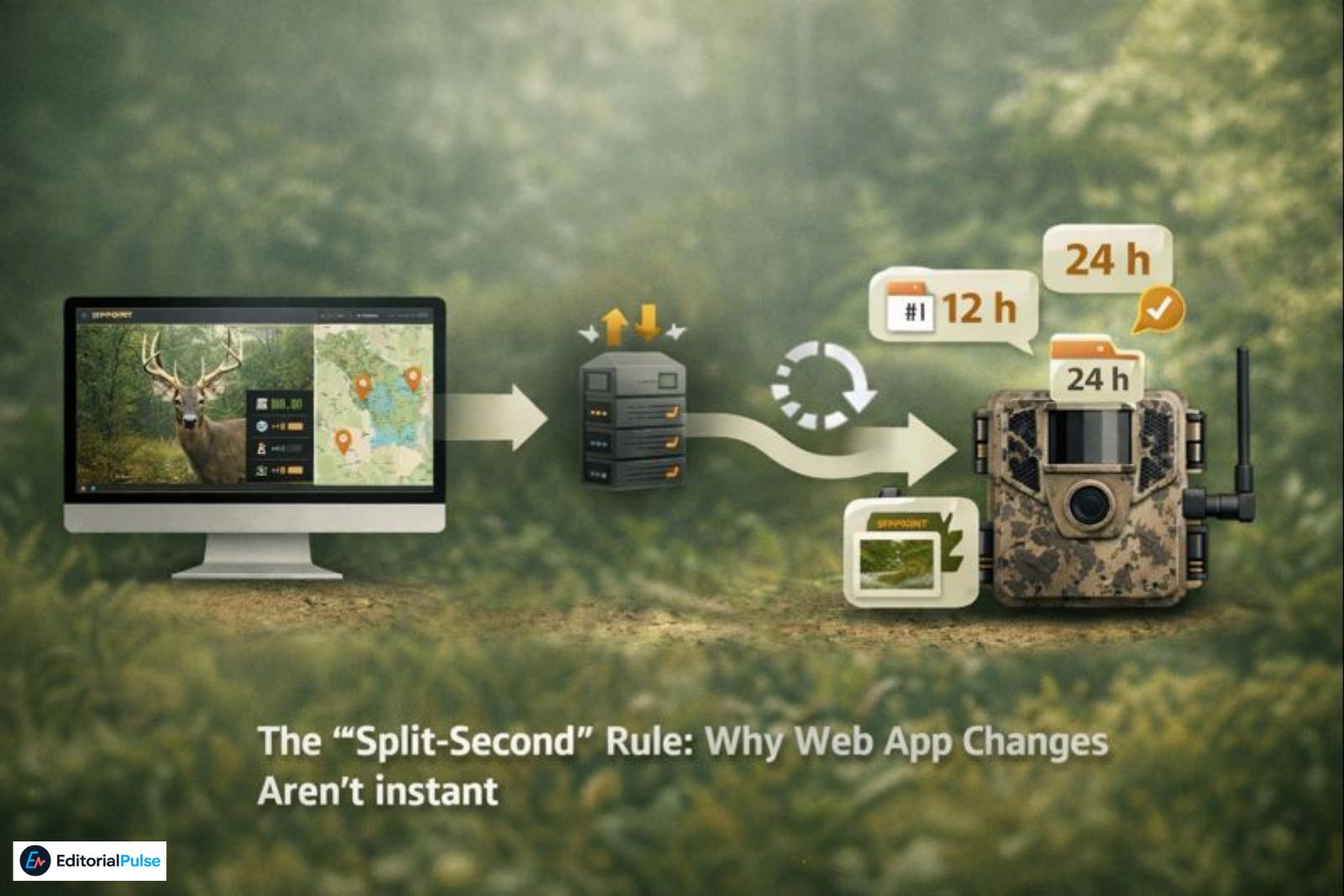
The “Split-Second” Rule: Why Web App Changes Aren’t Instant
One of the most misunderstood aspects of SPYPOINT—and rarely explained clearly—is how settings changes actually reach your camera.
Push vs. Pull (Critical Concept)
The SPYPOINT web app is a passive communicator.
When you change a setting (sensitivity, capture mode, transmission frequency) in the web app:
-
The change is saved on the SPYPOINT server
-
Nothing happens immediately at the camera
-
The camera pulls that instruction the next time it connects
If your camera is set to transmit:
-
Every photo → changes apply quickly
-
Every 12 hours → changes may take half a day
-
Once per day → changes can take up to 24 hours
This is why “instant” changes often appear ignored—they’re just waiting their turn.
Understanding this alone resolves a huge percentage of “web app not working” complaints.
Also Read: Tavl Web 2025: Full Login, Features & Setup Guide
Who the SPYPOINT Web App Is (and Isn’t) Best For
Best For
-
Hunters or land managers running multiple cameras
-
Reviewing activity on a large monitor
-
Managing data plans and Insiders Club features
-
Diagnosing battery, signal, or sync issues
Not Ideal For
-
Users who rely on instant alerts
-
Anyone expecting real-time photo delivery
-
Field-only camera management
Logging In: Avoiding Common Web App Login Issues
How to Log In
-
Go to webapp.spypoint.com
-
Use the same email/password as the mobile app
-
Select your region if prompted
Common Problems
-
Logging in at the wrong SPYPOINT URL
-
Recently changed passwords not synced
-
Cameras tied to a different account email
If your SPYPOINT login is not working, it’s almost always an account issue—not a browser limitation.
Camera Dashboard: What the Web App Does Best
The dashboard displays:
-
Last successful transmission
-
Battery voltage
-
Cellular signal strength
-
Recent images
Based on common failure patterns seen across cellular trail cameras, most “offline” issues are caused by power, signal, or SD card problems, not software errors.
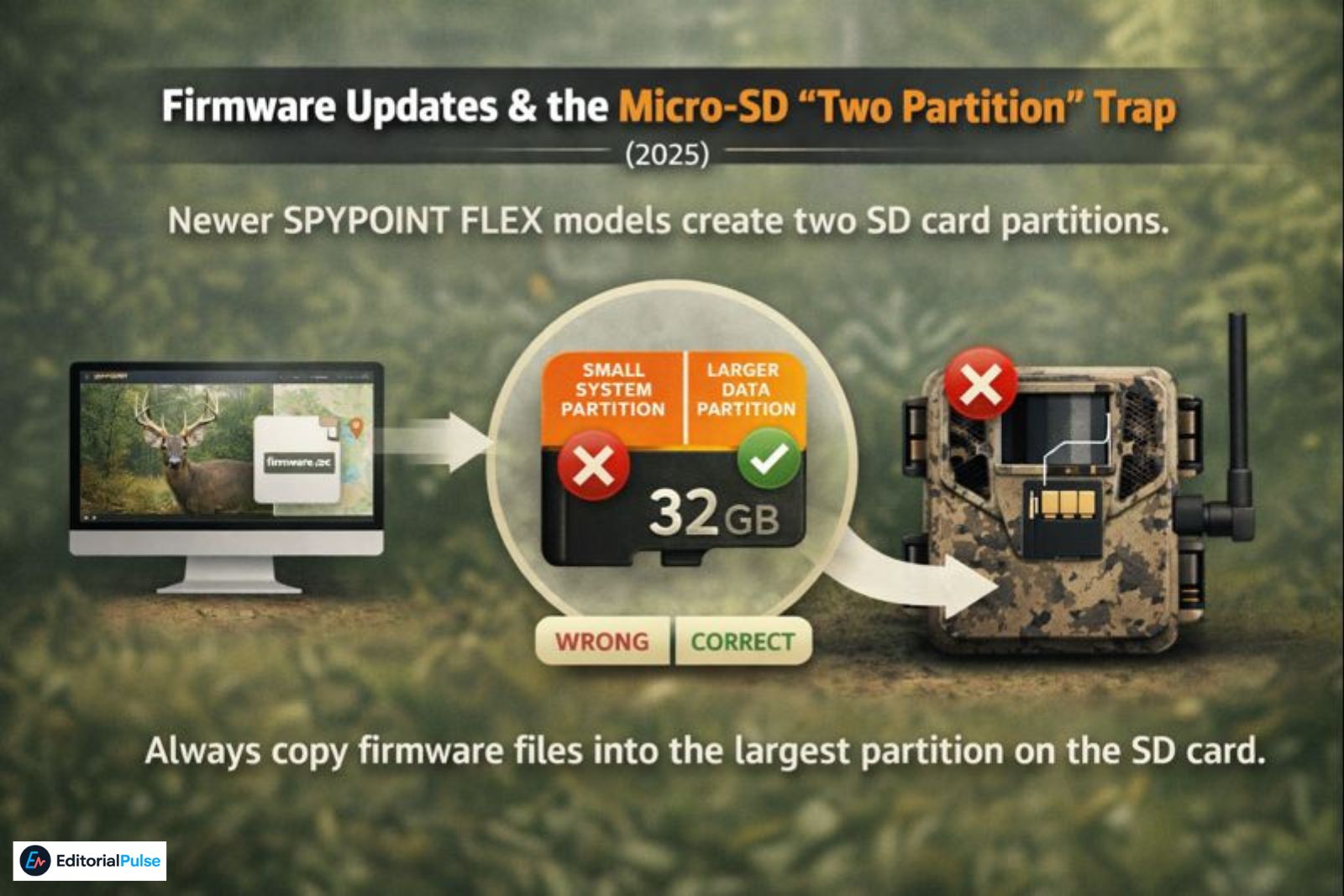
Firmware Updates & the Micro-SD “Two Partition” Trap (2025)
Newer SPYPOINT models—especially the FLEX series—handle firmware differently.
The Problem: Dual SD Card Partitions
When an SD card is formatted inside some FLEX cameras, it may create two partitions:
-
A small system partition
-
A larger data partition
When users download firmware via the web app and copy it to their SD card on a PC or Mac, they often place the files into the wrong partition.
The Fix
👉 Always copy firmware files into the largest partition on the SD card.
If firmware files are placed in the smaller partition:
-
The camera will ignore them entirely
-
No error message is shown
-
The update silently fails
This mistake is extremely common and rarely documented.
Data Plans and the SPYPOINT Insiders Club (Web Advantage)
Managing Data Plans
The web app makes it easier to:
-
View usage across cameras
-
Upgrade or downgrade plans
-
Reassign plans between devices
This is especially helpful when managing multiple locations.
Also Check: Web and App Activity Explained: What Google Tracks & How to Control It
Advanced AI Tagging (Insiders Club – 2025 Update)
In late 2025, SPYPOINT expanded AI tagging beyond just “Buck.”
Insiders Club members can now manage and filter custom species tags, including:
-
Turkey
-
Coyote
-
Elk
-
Wild Boar
-
Deer (by class)
-
Other regional wildlife
These advanced AI tags are far easier to review and manage on the web app, where a 24-inch monitor provides far more detail than a phone screen.
Why Your SPYPOINT Camera Isn’t Sending Pictures
Most Common Causes
-
Weak or intermittent cellular signal
-
Battery voltage drop (alkaline vs lithium)
-
Corrupt or unsupported SD card
-
Misunderstood transmission schedule
Quick Diagnostic Checklist
-
Check last transmission time
-
Confirm an active data plan
-
Use a Class 10 SD card
-
Format the card in-camera
-
Mount the camera higher for signal
How Often Do SPYPOINT Cameras Sync?
SPYPOINT cameras sync based on your configuration, not continuously.
Typical options:
-
Every photo
-
Scheduled intervals
-
Manual check-in (model dependent)
The web app shows last check-in, not last motion.
Using the SPYPOINT Web App on PC or Mac
There is no dedicated SPYPOINT web app for PC or Mac.
However, the browser version works reliably on:
-
Windows 10 / 11
-
macOS (Chrome or Safari)
-
Chromebooks with modern browsers
For multi-camera oversight, desktop is often superior.
Account Security & Browser-Based 2FA
As of late 2025, SPYPOINT has expanded Two-Factor Authentication (2FA).
What Many Users Miss
If you enable 2FA on your mobile app:
-
You will need your phone every time you log into the web app
-
This commonly surprises hunters logging in from a cabin or camp laptop
-
Leaving your phone in the truck can lock you out temporarily
2FA improves security—but plan for it when accessing the web portal remotely.
Common Mistakes New Users Make
-
Expecting instant setting changes
-
Looking for a desktop download
-
Updating firmware incorrectly via SD card
-
Using alkaline batteries in cold weather
-
Assuming the web app replaces the mobile app
FAQs
Q. What is the SPYPOINT web portal?
The SPYPOINT web portal is a browser-based dashboard that lets you view photos, manage trail cameras, adjust settings, and control data plans without using the mobile app. It runs at webapp.spypoint.com and works on Windows, macOS, and Chromebooks through a standard web browser.
Q. Can I download the SPYPOINT web app?
No, the SPYPOINT web app cannot be downloaded. There is no Windows or Mac installer. It runs entirely in your web browser, and any site offering a “SPYPOINT desktop download” is typically using an Android emulator or unofficial wrapper.
Q. Why do SPYPOINT setting changes take so long?
SPYPOINT cameras do not receive setting changes instantly. When you change a setting in the web app, it’s saved on SPYPOINT’s servers. The camera applies the change only during its next scheduled check-in, which could take hours or up to a full day, depending on your transmission settings.
Q. Why does my SPYPOINT camera show online but send no photos?
When a SPYPOINT camera shows online but sends no photos, the cause is usually an SD card issue, low battery voltage, weak cellular signal, or delayed transmission schedule. The web app reflects the last successful connection, not real-time activity.
Q. Does the SPYPOINT web app work on Chromebooks?
Yes, the SPYPOINT web app works on Chromebooks as long as they support a modern browser like Chrome and have unrestricted internet access. Because the web app is browser-based, no installation or Android app is required.
Conclusion
The SPYPOINT web app isn’t broken—it’s simply passive by design.
When you understand:
-
Pull vs. push communication
-
Scheduled sync behavior
-
SD card partitioning
-
Desktop-only Insiders features
…the entire system becomes predictable and reliable.
Use the mobile app for alerts and updates, and the web app for management, diagnostics, and scale. That combination delivers the best SPYPOINT experience in 2025.
Related: Zeam App Review (2025): Free Local TV, News & What It Actually Offers
| Disclaimer: This guide is for informational purposes only and is not affiliated with or endorsed by SPYPOINT. Features and behaviors described are accurate as of 2025 but are subject to change. Always consult official SPYPOINT documentation for the most current information. |