If you’re searching “what is Wave Browser”, there’s a high chance you didn’t install it on purpose — and now it’s sitting on your desktop, changing settings, and refusing to leave.
You’re not alone. In 2024–2025, cybersecurity forums, Reddit threads, and IT departments reported a surge in cases where Wave Browser appeared after installing unrelated freeware. Many users describe the same symptoms:
- Their default browser suddenly changed
- New tabs, extensions, or homepage redirects appeared
- Antivirus tools flagged it as a PUP (Potentially Unwanted Program)
- Uninstalling Wave Browser didn’t fully remove it
So, What is Wave Browser, is Wave Browser safe, is it a virus, why does it look like Microsoft Edge, and how do you remove it completely? This guide explains everything.
This guide breaks down everything clearly — using real data, technical accuracy, and updated 2025 insights.
What Is Wave Browser?
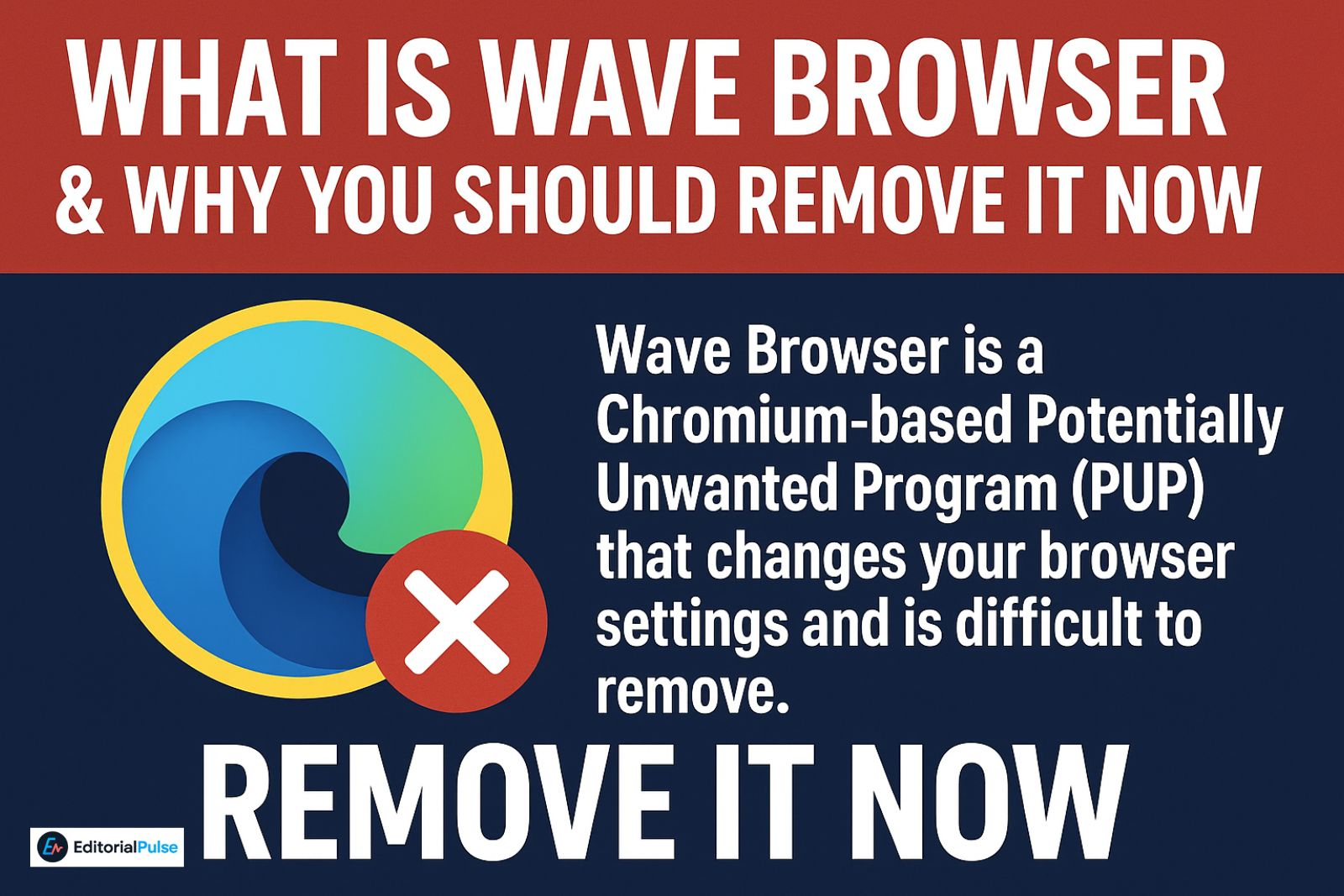
Wave Browser is a Chromium-based Potentially Unwanted Program (PUP) that often installs through bundled software and changes your default browser settings, search engine, and homepage. It is not a virus, but it is considered unsafe due to intrusive ads, data collection, and difficult uninstallation.
Think of it like this:
Wave Browser behaves like a “browser hijacker-lite.” Not outright malware — but definitely not something you want.
It typically gets bundled with installers from:
- Free utilities
- Fake updates
- Optimization tools
- Cracked software sites
- Shady download managers
Once installed, it may:
- Change your default search engine
- Add extensions you didn’t approve
- Redirect searches
- Show intrusive ads
- Install itself as the default browser without permission
These patterns are why security researchers classify it as a PUP/PUA, not a safe everyday browser.
What Is Wave Browser Used For?
Most legitimate browsers have clear goals: privacy, security, speed, or custom features. Wave Browser doesn’t.
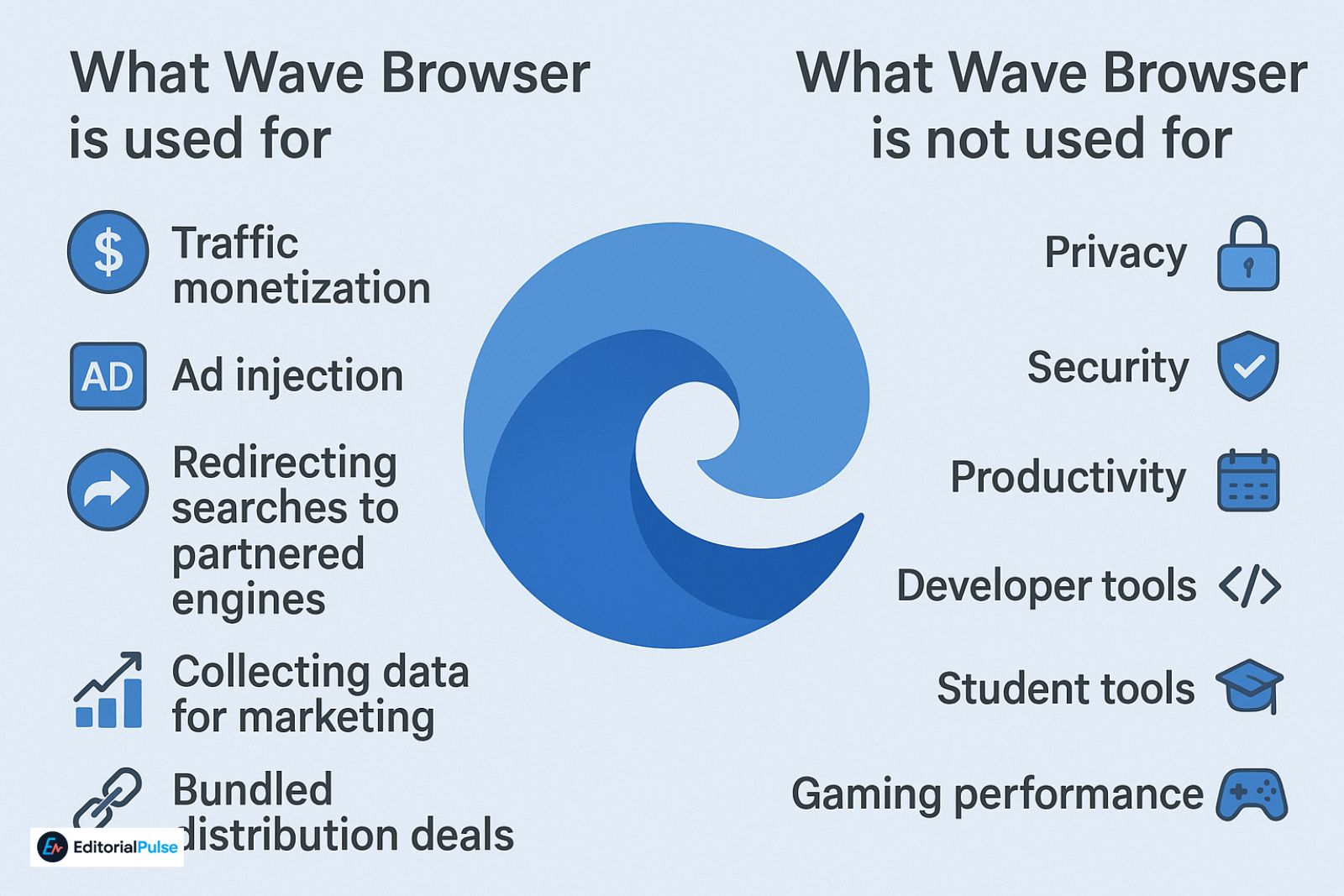
What it’s actually used for:
- Traffic monetization
- Ad injection
- Redirecting searches to partnered engines
- Collecting data for marketing
- Bundled distribution deals
What it’s not used for:
- Privacy
- Security
- Productivity
- Developer tools
- Student tools
- Gaming performance
There is no real feature that outperforms Chrome, Edge, Firefox, or Brave.
Is Wave Browser Safe in 2025?
Short answer: It’s not dangerous like ransomware — but it isn’t safe either. Wave Browser creates several risks:
- It changes core browser settings
Users report:
- Search engine hijacks
- Homepage resets
- Auto-launch at startup
- It installs without clear consent
This alone triggers security flags.
- It may collect more data than expected
Telemetry, browsing habits, and search logs can be shared with marketing partners.
- It resists removal
Some systems show:
- Hidden folders
- Registry entries
- Scheduled tasks
- Re-installation after reboot
- Antivirus tools detect it
Companies like Malwarebytes label it:
Not malware — but not trusted.
Why Do People Think It’s a Virus?
Because it behaves like one:
| Behavior | Looks Like a Virus? |
| Installs without permission | ✔️ |
| Changes browser settings | ✔️ |
| Adds extensions silently | ✔️ |
| Hard to uninstall | ✔️ |
| Redirects searches | ✔️ |
These are classic signs of browser hijackers, not trustworthy software.
How Wave Browser Gets Installed Without You Knowing
Security researchers trace Wave Browser’s spread to bundled installers.
Common sources:
- “Free PDF converters”
- Driver updaters
- Game mods
- Video downloaders
- Fake “Chrome updates”
- Cracked software
The installer hides Wave Browser behind:
- Pre-checked boxes
- “Express install” options
- Tiny grey text
- Multi-layered installers
What users see:
“Click next to continue.”
What actually happens:
Wave Browser installs silently in the background.
Signs You Have Wave Browser Installed
Look for these:
- Wave Browser icon on desktop
- Default browser changed
- Searches redirect to unfamiliar engines
- Extra extensions appear in Chrome/Edge
- Homepage replaced
- Unusual CPU/RAM usage
- Wave Browser runs at startup
If you did NOT intentionally install it → treat it as unwanted software.
How to Remove Wave Browser (Full Removal Guide)
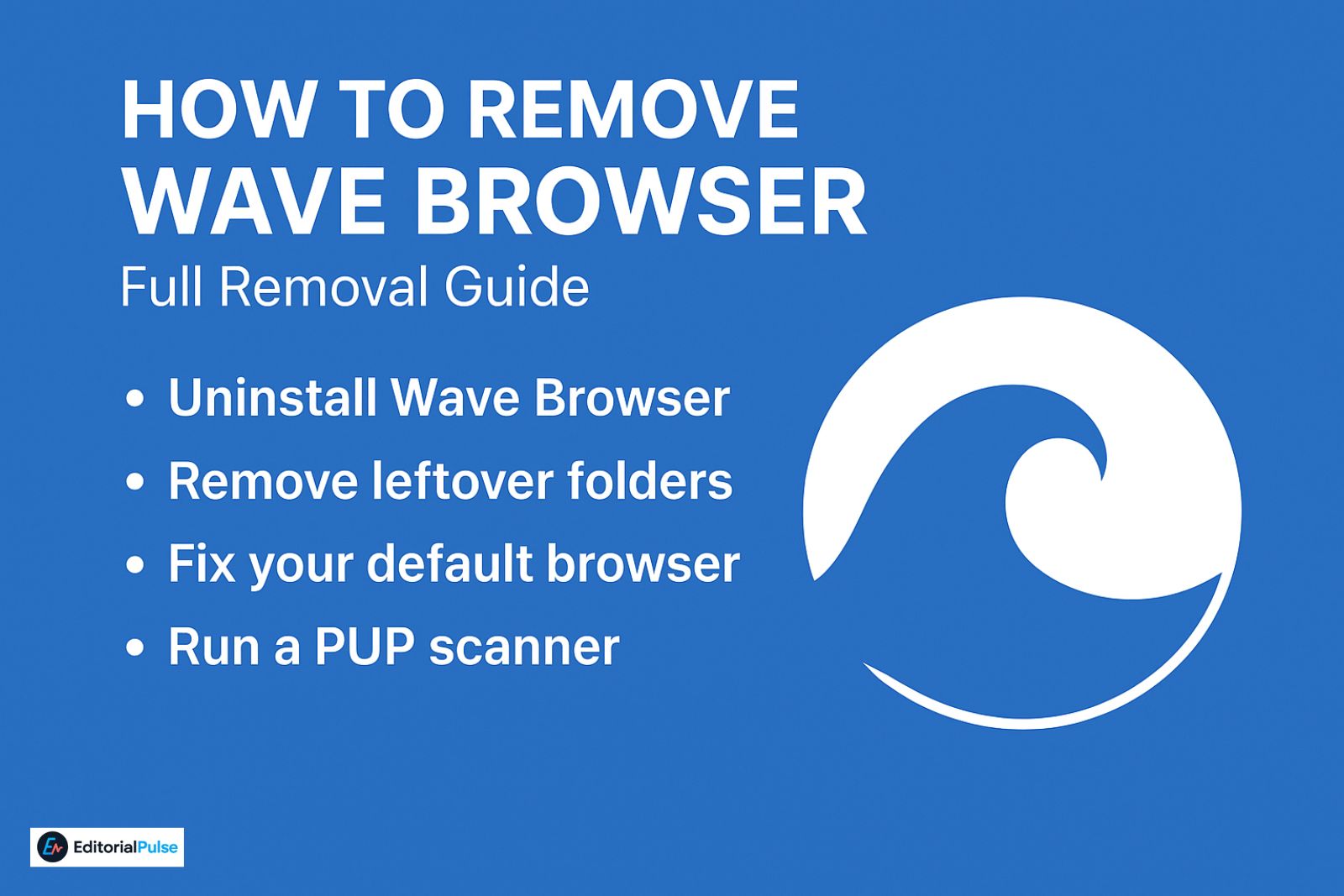
Removing Wave Browser requires cleaning multiple locations.
Follow this checklist:
Step 1 — Uninstall Wave Browser normally
Windows 10 / 11:
Settings → Apps → Installed Apps → Wave Browser → Uninstall
If the uninstall button is missing or fails → continue with the next steps.
Step 2 — Remove leftover folders
Delete:
C:\Program Files (x86)\WaveBrowser\
C:\Users\YourName\AppData\Local\WaveBrowser\
C:\Users\YourName\AppData\Roaming\WaveBrowser\
Step 3 — Fix your default browser
Reset your main browser:
Chrome
Settings → Search Engine → Manage → Restore Google
Settings → Reset Settings → Restore default settings
Edge
Settings → Reset Settings → Restore to default values
Step 4 — Remove unwanted extensions
Look for add-ons related to:
- Wave
- Browser tools
- Search assistants
- Unknown developers
Delete them.
Step 5 — Clean the Registry (Optional, Expert Only)
Search for:
“Wave Browser”
“WaveUpdater”
Delete matching keys.
If you’re not comfortable editing the registry → skip this.
Step 6 — Run a PUP scanner
Recommended:
- Malwarebytes
- HitmanPro
- ESET Online Scanner
These tools detect leftover components.
Better Alternatives to Wave Browser and Other Shadow Browsers
Some browsers may look normal but behave like Potentially Unwanted Programs (PUPs). This includes Leaf Browser, Hercules, Shadow, and Earls. They often install without consent, change your browser settings, show ads, and are difficult to remove.
If you want a safe and reliable browser, consider these alternatives:
Privacy:
-
Brave – Blocks trackers and ads by default.
-
Firefox + uBlock Origin – Highly customizable with strong privacy controls.
-
Orion Browser – Minimal tracking, ad-free, and focused on privacy.
Security:
-
Google Chrome – Frequent security updates and verified developer support.
-
Firefox ESR – Stable, secure, and maintained with enterprise-grade updates.
Students & General Use:
-
Opera GX – Lightweight, fast, and feature-rich.
-
Microsoft Edge (Secure Mode) – Official Microsoft support with built-in security features.
Why These Alternatives Are Better:
-
Trusted developers with ongoing updates
-
Regular security audits
-
Transparent privacy policies
-
No hidden installs, ads, or settings hijacks
Avoid Wave, Hercules, Shadow, and Earls browser: These browsers mimic Chromium but act as browser hijackers, installing unwanted extensions, changing your default search engine, and collecting data for marketing purposes.
Common Mistakes People Make When Removing Wave Browser
Avoid these pitfalls:
- Only deleting the desktop icon
- Not resetting the default browser
- Ignoring hidden folders
- Forgetting startup entries
- Not scanning for PUPs
- Not checking extensions
Removing Wave Browser = removing ALL components.
2025 Update — Why Wave Browser Is Still Growing
Two reasons:
- Bundled installers didn’t go away
Freeware bundling is still the #1 distribution method.
- Users trust anything that looks like Chrome
Wave Browser copies Chromium UI almost exactly.
People assume it’s “normal.”
FAQs
Q1. Is Wave Browser malware?
No, Wave Browser is not malware. It’s classified as a Potentially Unwanted Program (PUP) because it installs without clear consent, changes browser settings, redirects searches, and shows intrusive ads. While it doesn’t damage your system like ransomware, it’s considered unsafe and untrustworthy.
Q2. Why is Wave Browser on my computer?
This browser often appears after installing free software, fake updates, or bundled utilities. Users typically don’t give explicit permission, and the installer uses pre-checked boxes or hidden options to add it silently.
Q3. Is Wave Browser safe to use in 2025?
No. Wave Browser is not safe for regular use. It can:
-
Change your homepage and default search engine
-
Install unwanted extensions
-
Collect browsing data for marketing
-
Trigger antivirus alerts
It offers no real security, privacy, or performance benefits.
Q4. How do I remove Wave Browser completely?
To fully remove Wave Browser:
-
Uninstall it via Windows Settings → Apps → Wave Browser → Uninstall
-
Delete leftover folders in
C:\Program Files (x86)\WaveBrowser\and AppData directories -
Remove unwanted browser extensions
-
Reset your main browser’s default search engine and homepage
-
Clean registry entries (optional, for advanced users)
-
Run a PUP scanner like Malwarebytes or HitmanPro to catch remnants
Q5. Is Wave Browser the same as Microsoft Edge?
resembles Microsoft Edge because both are Chromium-based. It is not affiliated with Microsoft and behaves differently, often as a browser hijacker.
Wave Browser may collect browsing data, telemetry, and search history for advertising purposes. It is not designed for privacy or security and should not be trusted with sensitive information.
Conclusion
Wave Browser isn’t the worst software on the internet — but it’s not something you want to keep. It installs without clear consent, changes your settings, adds ads, and resists removal. If you didn’t install it intentionally, treat it as a Potentially Unwanted Program and remove it fully.
When someone asks “what is Wave Browser?”, the simplest answer is:
“A browser you didn’t ask for — and one you should uninstall.”
Related: How to Get Around LockDown Browser (2025): The Truth
| Disclaimer: The content of this article is intended for informational and educational purposes only. It does not constitute professional, legal, or technical advice. The author and publisher are not responsible for any damage, data loss, or issues that may occur while following the instructions provided. Readers should exercise caution, ensure backups are made, and verify procedures before making changes to their systems. |